
Overcoming PDF Bank Statement to Excel Conversion Issues

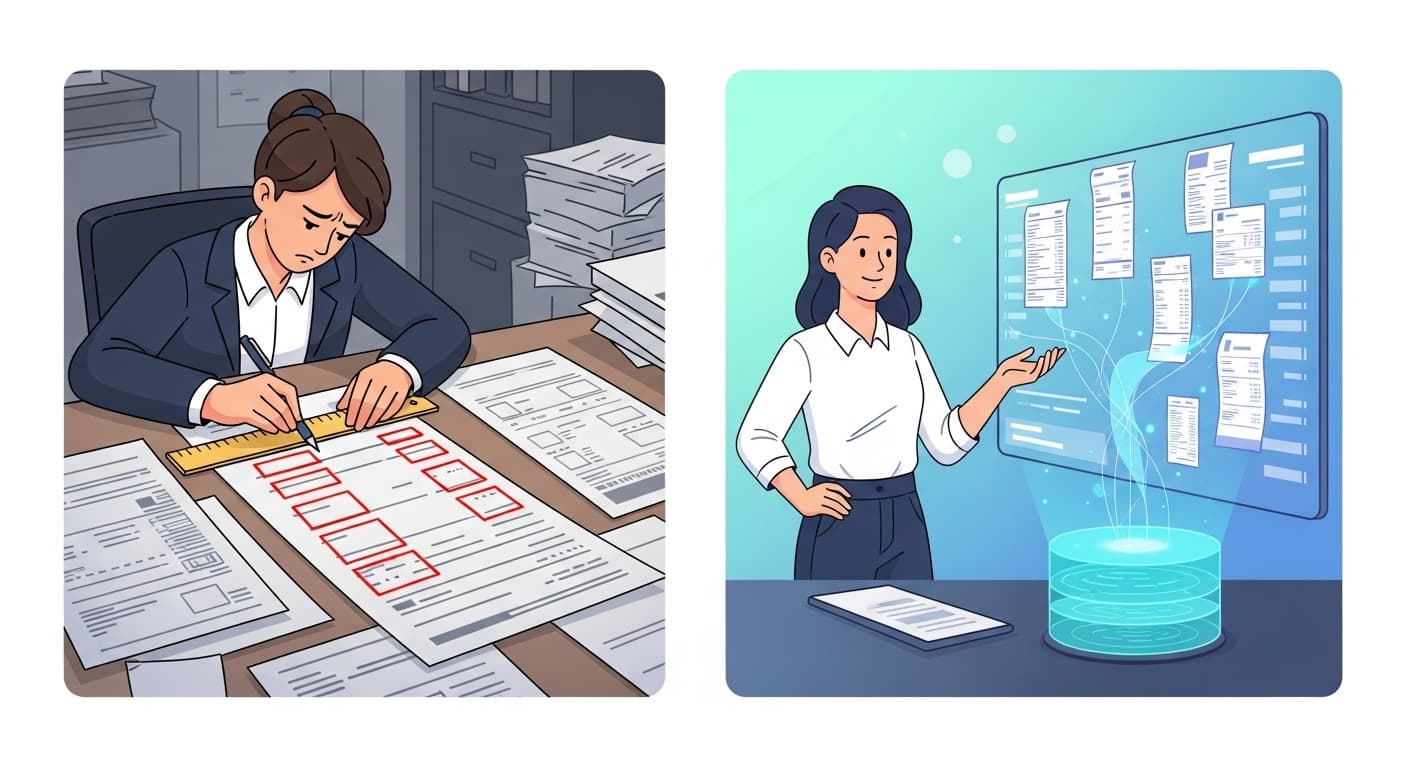
Overcoming PDF Bank Statement to Excel Conversion Issues: Lessons from 15 Years in the Field
I'm Michal, and if you've ever struggled with converting PDF bank statements to Excel, you're not alone. With over 15 years in AI, document processing, and data analytics for financial institutions, I've seen this challenge from every angle. Early in my career at a major consulting firm, I once spent an entire weekend manually reconciling a client's scanned statements because our conversion tools produced unusable output.
That experience shaped my approach to document processing. Today, I want to share what I've learned about why these conversions fail, what actually works, and how modern AI tools are changing the landscape for everyone from freelancers to enterprise teams.
Why PDF Bank Statement Conversion Is Difficult
Converting PDF bank statements to Excel reliably is harder than it should be. In my work with SMEs and large corporations, I've consistently seen the same issues: what should be a straightforward task becomes hours of manual work. Drawing from client experiences and community discussions, here are the most common problems.
Why Premium Tools Often Fall Short
Many organizations invest in Adobe Acrobat Pro expecting reliable Excel exports, only to encounter problems. I worked with a CFO from a mid-sized firm whose quarterly reconciliation stalled because the exported data had fundamental structural issues - columns merged incorrectly, headers bleeding into transaction rows, and balances scattered across multiple cells.
The underlying issue is how banks design PDFs. They're optimized for visual presentation and printing, not data extraction. Elements like headers, footers, logos, and multi-column layouts don't translate cleanly to tabular formats.
The Challenge of Scanned Statements
Scanned PDFs introduce additional complexity. OCR (Optical Character Recognition) tools vary widely in quality. One client shared results where characters were misinterpreted - numbers becoming symbols, "S" appearing as "5," entire transactions lost to poor scan quality.
Multi-column statements are particularly problematic. Without proper layout detection, transaction data gets concatenated or reordered, requiring significant manual correction. For audit purposes, where accuracy is critical, this level of error is unacceptable.
Format Inconsistency
Even when OCR works reasonably well, formatting issues remain common. Multiple lines compressed into single cells, inconsistent date formats, duplicate entries - these issues compound quickly. I've seen sorting errors transform straightforward reconciliation tasks into complex debugging exercises.
The problem isn't any single issue - it's the combination. Inconsistent PDF structures, varying scan quality, and format discrepancies create compounding errors that require systematic solutions.
Solutions That Work
Over the years, I've tested numerous approaches - from manual workarounds to automated solutions. Here's what I've found effective.
Manual Workarounds for Small Volumes
For occasional needs, some browser-based methods work better than expected. Opening PDFs in Firefox and copying data tables often preserves structure better than Chrome or Edge. For one-off conversions, this can save time compared to full manual re-entry.
For scanned documents, importing to Word first, then copying to Excel with Text to Columns can help structure unstructured text. These methods are time-consuming but useful when volume is low and deadlines are tight.
Power Query in Excel 365 handles structured PDFs reasonably well, though results vary significantly with scanned documents.
Custom Scripts and Their Limitations
Many technical teams turn to Python-based solutions using libraries like pdfplumber, pandas, and openpyxl. These offer precise control over extraction logic and can handle bank-specific formatting quirks well.
I built similar solutions for a hedge fund client. While effective initially, maintaining and scaling these scripts proved challenging. Each bank format variation required code updates, and changes to PDF structures broke existing parsers.
Security Considerations for Financial Data
When working with sensitive financial documents, security isn't optional. Based on my experience handling data for financial institutions, here are the essential practices.
Data handling matters. Use services that encrypt data in transit and at rest (AES-256 is standard). Confirm that files are deleted after processing and that retention policies are clearly stated.
Read the terms. Before uploading financial data anywhere, review privacy policies and terms of service. Confirm whether your data will be used for AI training - most reputable services explicitly state they don't train on customer data.
Account-based processing is safer. Uploading through authenticated accounts where you've agreed to terms is generally more secure than anonymous web uploads. You have better visibility into how your data is handled.
At Suparse, we process all data with end-to-end encryption and never use customer documents for model training. Our privacy documentation details these practices.
What to Look for in a Conversion Tool
The market has many options, ranging from specialized tools to general-purpose AI platforms.
Specialized bank statement converters like DocuClipper and BankStatement2Excel offer strong accuracy for formats they support. DocuClipper advertises ~95% OCR accuracy with integration options. BankStatement2Excel claims 99.9% precision across 50+ formats. The limitation is coverage - when your bank's format isn't supported, you're back to manual work.
AI-powered platforms like Suparse use template-free parsing that adapts to different layouts. This flexibility matters when dealing with multiple banks or changing statement formats.
Suparse specifically focuses on financial documents with pre-trained models for bank statements, invoices, and receipts. Our approach combines:
- 99%+ extraction accuracy on common bank statement formats
- Template-free processing that adapts to different layouts
- Human-in-the-loop verification for critical data
- Unified export consolidating multiple statements into single Excel/CSV files
- Bulk processing for high-volume workloads
- Direct integration export formats including QBO for QuickBooks and CSV for Xero
This combination of accuracy, flexibility, and workflow features is designed for real-world finance operations.
Best Practices for Reliable Results
Regardless of which tool you use, following these practices will improve results.
Before Converting
- Scan at adequate resolution. 300 DPI minimum for OCR accuracy.
- Clean the document. Remove handwritten notes, stamps, or highlights when possible.
- Ensure standard fonts. Decorative fonts and unusual characters reduce OCR reliability.
- Unlock protected files. Remove password protection before processing.
After Conversion
- Verify totals. Cross-check opening/closing balances and transaction totals.
- Check running balances. Mismatches here indicate missing or duplicated transactions.
- Standardize formats. Ensure dates and amounts are formatted consistently.
- Remove headers and footers. Clean up page-specific elements that don't belong in the data.
Suparse assists with some of these steps automatically - data validation flags balance mismatches, and date standardization is built-in. But manual verification remains important for critical reconciliations.
Moving Forward
PDF bank statement conversion remains challenging because the input formats are fundamentally inconsistent. The right approach depends on your volume, technical resources, and accuracy requirements.
For low-volume needs, browser-based workarounds may suffice. For teams processing statements regularly, dedicated tools or AI platforms typically justify their cost through time savings. And for organizations with complex requirements, combining automated extraction with verification workflows provides the best balance of efficiency and accuracy.
For a step-by-step walkthrough covering extraction, transaction categorization, and export in one workflow, see our guide on how to convert PDF bank statements to Excel and categorize transactions.
If you're looking to streamline your bank statement processing, try Suparse with 50 free pages. No credit card required - upload a statement and see the results for yourself.
Try Suparse with 50 free pages
Convert your first 50 pages of bank statements to Excel for free. No credit card required.
Start Converting for FreeMichal Raczy
Michal is the founder of Suparse.com. He has over 15 years of experience in delivering projects in data analysis, automation, and document processing. Michal solves complex automation and AI implementation challenges for both SMEs and large corporations, with a particular focus on document processing. Contact at michal@suparse.com.