
Best Scan to Google Sheets Converters in 2026

Best Scan to Google Sheets Converters in 2026
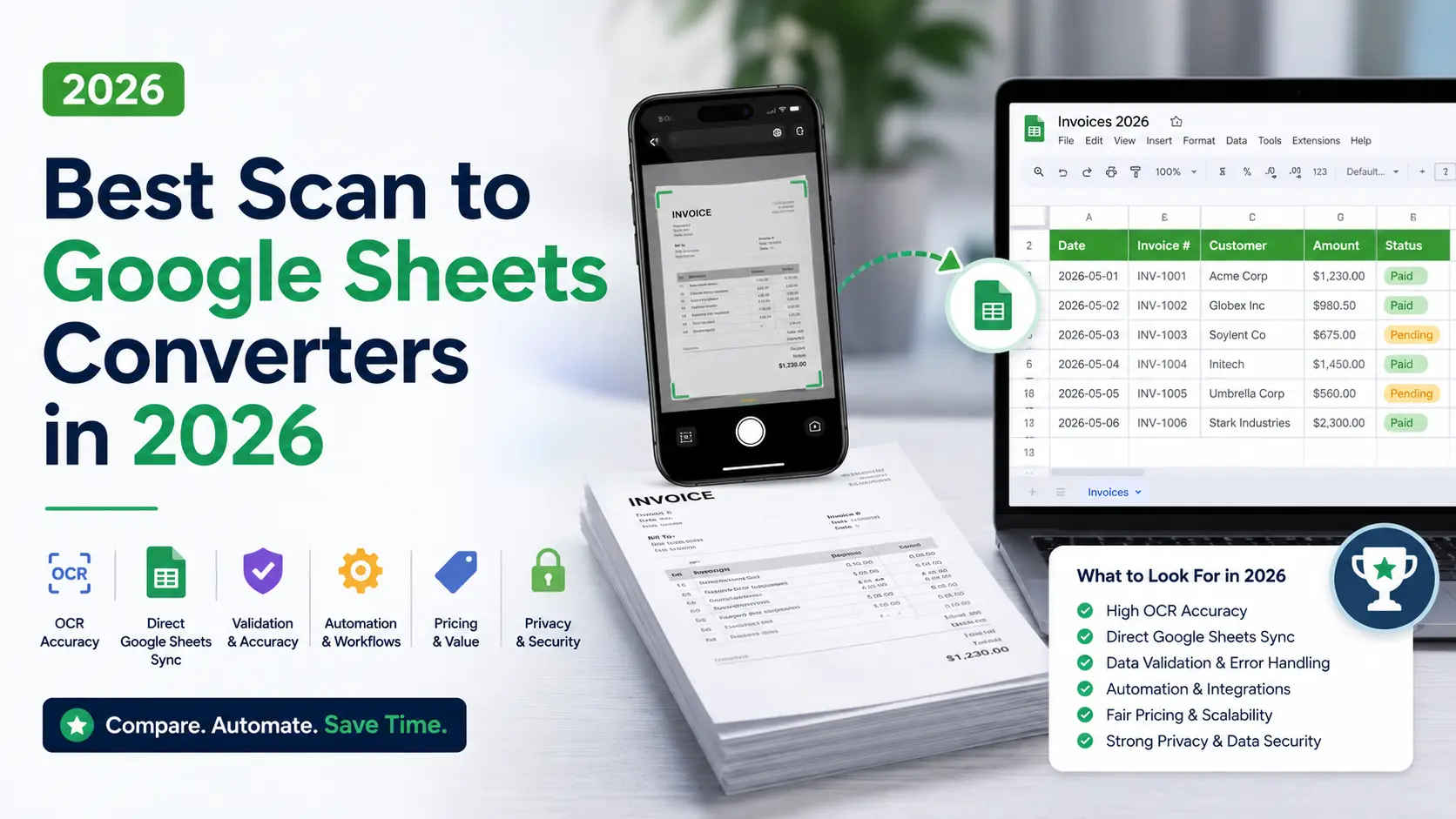
The best scan to Google Sheets converter in 2026 is the one that turns messy documents into usable rows, not just searchable text. For most finance, bookkeeping, and operations teams, that means OCR, field extraction, table reconstruction, validation, and a reliable way to write results into the right spreadsheet tab.
Google Sheets is often the real database for small teams. Receipts, invoices, bank statements, purchase orders, delivery notes, and field forms all end up there because Sheets is easy to share, filter, reconcile, and connect to other tools. The problem is the first step: getting accurate data out of paper, PDFs, and phone photos. In 2026, Conexiom's data-entry error analysis cites a 1% average human data entry error rate, which is enough to make blind copy-paste risky at spreadsheet scale.
If your workflow starts with receipts, compare this guide with our receipt OCR tool comparison. If bank transactions are the bottleneck, start with our bank statement converter comparison and then use this article to choose the Sheets workflow around it.
Key Takeaways
- Suparse is the best overall scan to Google Sheets converter for structured finance documents.
- Review matters because spreadsheet errors compound quickly when scans feed live operations.
- Direct Sheets sync is different from CSV export.
- Mobile scan apps work best for barcodes and simple receipts.
- Zapier, Make, and n8n are useful when OCR is only one step in a larger workflow.
Quick Answer: What Is the Best Scan to Google Sheets Converter?
The best converter is Suparse for most business documents because it reduces copy-paste work while still giving teams structured extraction, validation, and controlled export into Sheets. Choose a narrower option only when your documents are simple, repeatable, and easy to check manually.
| If You Need... | Choose | Why |
|---|---|---|
| Best overall scan to Google Sheets workflow | Suparse | Handles receipts, invoices, bank statements, scans, custom schemas, validation, and spreadsheet exports |
| Fixed-layout PDF parsing | Docparser | Strong when the same document layout repeats |
| Invoice and receipt workflow automation | Nanonets | Pre-trained models, validation, and Google Sheets exports |
| Enterprise financial document review | Docsumo | Approval workflows and direct Sheets export after validation |
| Free or low-volume baseline | Google Drive OCR or Workspace add-ons | Useful for simple files, but cleanup is manual |
| No-code workflow building | Zapier, Make, or n8n | Best when Drive, Gmail, OCR, review, and Sheets need to connect |
| Mobile barcode capture | Sheetify / Scan to Sheets apps | Good when each scan should append one row |
The short version: use Suparse when you need structured document data in Google Sheets. Use a simple converter only when the file is clean, the volume is low, and someone will review every row. Use Zapier, Make, or n8n when the scan is part of a bigger process.
The biggest mistake is treating "OCR to Sheets" as one category. A tool that writes text into a cell is not the same as a tool that extracts invoice totals, receipt line items, statement transactions, and form fields into labeled columns. The second workflow is what saves time.
A scan to Google Sheets converter should be judged by structured output, not OCR alone. Teams should prioritize tools with validation, confidence review, and direct row mapping before data reaches live spreadsheets.
What Counts as a True Google Sheets Integration?
In 2026, Suparse supports 10+ pre-trained document types and spreadsheet-ready exports, while Docparser's Google Sheets integration documentation describes parsed-data delivery to Sheets in a few minutes. A true integration writes mapped fields into a chosen sheet or tab; it does not stop at downloading an Excel or CSV file.
There are three levels of "scan to Google Sheets" support. The weakest is OCR text output, where you copy text from Google Docs or an add-on into cells. The middle level is file conversion, where a PDF becomes XLSX or CSV and then gets imported. The strongest level is a live integration that appends validated rows.
Direct integration matters because Sheets often feeds dashboards, Apps Script, Looker Studio, Zapier, Make, or accounting workbooks. If the converter only creates a file, someone must still download, upload, import, check headers, and fix broken rows. That is where errors creep in.
The best tools let you map extracted fields to columns. For receipts, that might mean merchant, date, tax, total, currency, category, and line items. For invoices, it might mean vendor, invoice number, due date, subtotal, tax, total, and each line item. For bank statements, it means transaction dates, descriptions, debits, credits, and balances.
Suparse fits this category because it can process document types such as receipts, invoices, and bank statements, then export structured results to Google Sheets, Excel, CSV, JSON, or QBO. It also supports 100+ OCR languages, which matters when vendors, customers, or receipts are not all in English.
A true Google Sheets integration maps extracted document fields into selected spreadsheet columns. Live workflow tools differ from one-off file converters because they can move approved, mapped data into the spreadsheet instead of leaving users with manual imports.
How Do the Best Scan to Google Sheets Converters Compare?
In 2026, this review compares 10 scan-to-Sheets options, and Docsumo's workflow automation documentation describes exports across Google Drive, Sheets, OneDrive, S3, and other destinations after approval. The best tools now compete on review workflow, not just OCR.
| Tool | Best For | Direct Sheets Path | Pricing Signal | Strengths | Watchouts |
|---|---|---|---|---|---|
| Suparse | Finance, bookkeeping, SMB operations | Google Sheets export/integration | 50 free page credits, no credit card, no time limit; Standard $11/mo for 100 pages and $19/mo for 250 pages; Business $76/mo or $828/year for 1,000 pages; annual 10,000-page tier at about $36 per 1,000 pages/month | Receipts, invoices, bank statements, custom fields, bulk processing, HITL review | Cloud SaaS may not fit air-gapped policies |
| Docparser | Repeating PDFs and forms | Native Google Sheets integration | From about $39/mo for 100 credits; 1 credit can cover a document up to 5 pages | Transparent rule-based parsing and field mapping | Template maintenance when layouts change |
| Nanonets | Invoice, receipt, and table automation | Google Sheets integration | Free allowance; Pro often cited around $499/mo for 5,000 pages | Pre-trained models, validation, workflow automation | Setup and pricing may be heavy for tiny teams |
| Docsumo | Lenders and enterprise finance teams | Sheets after approval or Zapier | Sales-led / custom; estimate before rollout | Validation queues, financial documents, approvals | Enterprise buying motion |
| Google Drive OCR | One-off text extraction | Manual Docs-to-Sheets copy | Free with Google account / Workspace | Free and already in Google Workspace | Poor for complex tables and structured fields |
| Google Workspace add-ons | Simple PDF/table conversion inside Workspace | Add-on writes to Sheets | Freemium or subscription by add-on | Convenient for basic conversions | Vendor quality and privacy terms vary |
| PDF.co + Zapier | Custom PDF workflows | Zapier creates rows | PDF.co starts around $8.99/mo annually; Zapier plan may add cost | Flexible parsing and automation recipes | Requires workflow design and testing |
| Make / n8n | Power users and custom flows | Sheets modules append/update rows | Freemium / open-source options; OCR provider billed separately | Multi-step automation, logging, branching | More technical setup |
| Sheetify / Scan to Sheets apps | Mobile barcodes and field capture | App appends rows | Freemium mobile-app pricing | Fast mobile scan-to-row workflows | Not ideal for historical PDF backlogs |
| AppSheet | Internal mobile apps on Sheets | Sheets as backend | Included in some Workspace tiers; paid plans vary | Forms, approvals, mobile data capture | OCR is not the core strength |
This comparison favors tools that support real structured output. A generic PDF converter may look cheaper, but cleanup cost often hides in the spreadsheet. If a tool cannot separate a receipt total from a tax line or a bank statement balance from a transaction row, it is not a strong business converter.
For teams already using spreadsheets as an operating system, the best setup is usually simple: scan or upload documents, review extracted fields, export to Sheets, and run formulas or dashboards from clean columns. The fewer manual steps between upload and row creation, the easier the process is to audit.
In document automation projects, the "last mile" is usually where value is won. Most teams can get some OCR text. The hard part is sending only the right fields into the right columns, keeping line items intact, and catching exceptions before the spreadsheet becomes a cleanup queue.
The scan to Google Sheets market splits into OCR utilities, file converters, IDP platforms, and automation builders. Validation and export timing matter because business workflows need approved rows, not just extracted text.
Which Tools Are Best by Use Case?
In 2026, Nanonets' Google Sheets integration page describes workflows for invoices, receipts, POs, and PDF documents, with extracted table data landing in rows automatically. That makes use-case fit more important than brand recognition: a receipt scanner, a bank statement extractor, and a barcode app solve different problems.
1. Suparse - Best Overall for Business Documents
Suparse is the best overall choice when scans include receipts, invoices, bank statements, or custom forms. It is built for structured extraction, not just OCR text. You can upload PDFs, scans, or images, review extracted values, and export clean data into spreadsheet-ready formats.
The advantage is breadth. One team can process receipts, invoices, statements, purchase orders, quotes, delivery notes, and custom documents without switching tools. That matters when Google Sheets is only one output, while Excel, CSV, JSON, and QBO are also needed.
Suparse is also the strongest option when accuracy controls matter. Human-in-the-loop review helps teams catch low-confidence fields before export. That is a better workflow than dumping OCR text into a spreadsheet and asking someone to find problems later.
Best for: Accountants, finance teams, small businesses, nonprofits, property managers, and operations teams that live in Google Sheets.
2. Docparser - Best for Repeating Layouts
Docparser works well when the same PDF layout repeats. You create parsing rules, map fields to columns, and send the results to Google Sheets. Vendor invoices, order forms, and standard reports are good fits when the document design stays stable.
The limitation is maintenance. If a supplier changes its invoice layout, if tables shift, or if fields appear in different places, rules may need adjustment. That is fine for predictable templates, but less ideal for mixed receipts, varied statements, or many document families.
Best for: Teams with stable vendors, predictable forms, and staff who can maintain parsing rules.
3. Nanonets - Best for Invoice and Receipt Automation
Nanonets is a strong fit for teams that want pre-trained invoice and receipt extraction, workflow automation, and data export to Sheets. It can also sit inside larger no-code or API-led processes when OCR is one stage in a broader workflow.
The product is more capable than a simple add-on, but that also means setup deserves time. You should define fields, test your own samples, decide when humans review exceptions, and monitor output quality before writing rows into operational spreadsheets.
Best for: AP teams, operations teams, and companies automating invoice or receipt intake.
4. Docsumo - Best for Approval Workflows
Docsumo is strongest when document extraction needs an approval step. Its integration materials emphasize cloud intake, validation, and export to tools like Google Sheets. That makes it relevant for lenders, insurance teams, and finance teams with compliance controls.
It may be more platform than a tiny business needs. For organizations that need queues, review policies, and financial-document processing, the extra workflow depth can be worth it.
Best for: Mid-market and enterprise teams that need validation before export.
5. Google Drive OCR and Workspace Add-ons - Best Free Baseline
Google Drive OCR can open many images and PDFs in Google Docs, which gives you editable text. Some Workspace Marketplace add-ons go further and claim PDF-to-Sheets, OCR-to-Sheets, or table extraction directly inside Google Workspace.
This category is useful for low-volume work. It is not where I would put high-stakes bank statements, month-end invoices, or expense backlogs. You still need to check whether tables remain aligned and whether private documents are processed by a third-party add-on.
Best for: Occasional conversions, simple tables, and users who want to stay inside Google Workspace.
6. Zapier, Make, and n8n - Best for Custom Automation
Zapier, Make, and n8n are not OCR engines by themselves. They are automation layers. They connect Gmail, Google Drive, OCR tools, AI steps, review logic, notifications, and Google Sheets row creation.
This path is powerful when your process has conditions. For example: watch a Drive folder, send new invoices to OCR, route low-confidence fields to review, append approved rows to Sheets, then notify Slack. That is too specific for most basic converters.
Best for: No-code builders, automation consultants, and teams with multi-step workflows.
7. Sheetify, Scan to Sheets, and AppSheet - Best for Mobile Capture
Mobile scan-to-Sheets apps are best when the scan itself is the data event. A barcode scan, QR code scan, receipt photo, or field inspection can become one new row in a bound Sheet. That is useful for inventory, attendance, expenses, and asset tracking.
AppSheet is different. It lets teams build internal apps on top of Google Sheets. It is strong for forms, approvals, and mobile entry, but it is not a replacement for document extraction when the input is a dense PDF statement or invoice table.
Best for: Field teams, inventory workflows, and simple mobile capture.
Scan-to-Sheets tools should be matched to document type. IDP tools fit financial documents, while mobile scan apps fit barcode and field-capture workflows.
How Should You Choose a Scan to Google Sheets Converter?
In 2026, the Google Workspace Marketplace listing for OCR Recognition says the add-on can write cell values from documents directly into Sheets. Marketplace convenience is helpful, but buyers should evaluate accuracy, privacy, and review controls before sending sensitive files through any add-on.
Use this checklist before choosing:
| Evaluation Area | What to Check |
|---|---|
| Document types | Receipts, invoices, statements, forms, barcodes, handwritten notes, photos, PDFs |
| Scan quality | Phone photos, skewed pages, faded receipts, multi-page scans, image-only PDFs |
| Structured fields | Named fields, line items, transaction rows, dates, tax, totals, balances |
| Direct Sheets support | Native integration, OAuth connection, Zapier/Make/n8n, or file import only |
| Validation | Confidence scores, human review, balance checks, duplicate checks, approval queues |
| Bulk processing | Multi-file upload, Drive folder watch, email intake, API ingestion |
| Export formats | Google Sheets, Excel, CSV, JSON, QBO, accounting formats |
| Privacy | Data retention, encryption, DPA, GDPR, model-training policy |
| Pricing unit | Page, document, scan, task, credit, user, or automation run |
Start with the highest-risk document, not the easiest one. If your hardest input is a scanned bank statement with page-spanning transaction tables, test that first. If your hardest input is a crumpled receipt photo, test receipt line items before trusting totals.
Do not compare pricing until you know the unit. A cheap plan can become expensive if it charges per page and your statements run 20 pages each. A higher monthly plan can be cheaper if it includes review, batch exports, and fewer cleanup hours.
For finance workflows, validation should be non-negotiable. A wrong total, duplicated receipt, or missing transaction can cause more work than manual entry. If the tool writes directly to Sheets, decide whether data should be reviewed before or after it lands in the spreadsheet.
The practical test is simple: can a new team member understand the output without opening the original document? If the spreadsheet has clear columns, normalized dates, consistent currencies, and intact line items, automation worked. If the user needs to inspect every source PDF, it only moved the manual work.
A scan to Google Sheets converter should be tested on the buyer's hardest documents first. Google Workspace add-ons can populate Sheets, but business users should evaluate field accuracy, validation, privacy, pricing units, and whether the tool creates structured rows rather than raw OCR text.
What Is the Safest Implementation Plan?
In 2026, Suparse's receipt OCR page lists 4 spreadsheet and data export formats: Google Sheets, Excel, CSV, and JSON. The safest rollout starts with a small document set, compares output against manual entry, and only then automates row creation into live spreadsheets.
Start with 20 to 50 real files. Include clean PDFs, low-quality scans, phone photos, edge cases, and documents from different vendors or banks. Measure how many fields are correct without edits, how many need review, and which mistakes would have mattered in downstream reporting.
Next, decide where review happens. For low-risk inventory scans, direct row creation may be fine. For financial documents, send low-confidence fields to review before export. That is especially important for line items, tax amounts, running balances, and account numbers.
Then lock the spreadsheet design. Create stable headers, data validation rules, protected formula columns, and a separate raw-data tab if needed. Avoid letting automation write into the same cells users edit manually. That makes errors harder to trace.
Finally, document the exception path. What happens if a scan is unreadable? Who fixes a failed extraction? When should a row be deleted, corrected, or reprocessed? The best tool will still need a human procedure for unusual files.
For teams building bigger workflows, connect the converter after the extraction schema is stable. Gmail, Drive, Zapier, Make, n8n, AppSheet, dashboards, and accounting imports all work better when the source columns do not change every week.
The safest scan-to-Google-Sheets rollout uses real sample documents, field-level accuracy checks, a review gate for financial data, stable spreadsheet headers, and an exception process.
Frequently Asked Questions About Scan to Google Sheets Converters
In 2026, Zapier's Google Sheets and PDF.co integration directory shows one path for connecting OCR and PDF workflows to Sheets. The common questions are less about whether automation is possible and more about when it is accurate enough.
Can I scan a receipt directly into Google Sheets?
Yes. You can use Suparse for structured receipt extraction, a mobile receipt app for quick capture, or an automation flow that sends a receipt image through OCR and appends rows to Sheets. For expense reporting, make sure the tool extracts merchant, date, tax, total, currency, and line items.
Can Google Sheets OCR images by itself?
Not in the way most business users mean. Google Drive and Docs can help extract text from some images or PDFs, and add-ons can extend Sheets. Native Google Sheets is not a full document extraction system for scanned invoices, bank statements, or receipts.
Is CSV export the same as Google Sheets integration?
No. CSV export creates a file that someone imports. A Google Sheets integration writes data into a selected spreadsheet or tab. CSV is fine for one-off imports. Direct Sheets sync is better for recurring workflows, dashboards, shared trackers, and automated reporting.
Which tool is best for bank statements into Google Sheets?
Suparse is the best fit when statements may be scanned, multi-page, or from different banks because it supports structured extraction and validation. For a deeper bank-specific tool comparison, see our best bank statement converter guide.
Which tool is best for invoices into Google Sheets?
Suparse is the best all-around choice for invoices when you want structured fields, line items, review, and spreadsheet exports. Docparser works well for repeat layouts, while Nanonets and Docsumo fit broader AP automation. Our invoice scanning software comparison covers that category in detail.
Final Recommendation
The best scan to Google Sheets converter is the one that reduces typing without removing review. For clean PDFs, Google Drive OCR or a Workspace add-on can be enough.
For business documents that need structured rows, Suparse is the best overall choice. It handles receipts, invoices, bank statements, scans, and custom documents, then exports to spreadsheet and automation formats your team can actually use. Start by testing your hardest 50 pages through the free extraction trial, then build the Google Sheets workflow around the fields you trust.
Turn Scans, PDFs, Receipts, and Statements Into Google Sheets.
Extract structured rows from receipts, invoices, bank statements, and custom documents. Test your first 50 pages free with no credit card required.
Try Free - No Credit Card RequiredScan to Google Sheets: Frequently Asked Questions
What is the best scan to Google Sheets converter in 2026?
For most finance, bookkeeping, and operations teams, Suparse is the best scan to Google Sheets converter because it handles PDFs, scanned images, receipts, invoices, and bank statements with structured extraction, validation, bulk processing, and direct Google Sheets export. Docparser is a good fit for fixed templates, while Nanonets and Docsumo suit larger workflow automation projects.
Can Google Drive convert a scanned PDF directly to Google Sheets?
Not directly. Google Drive can open some PDFs and images in Google Docs for OCR, but the result is text in a document, not a clean row-and-column spreadsheet. You still need manual cleanup or a separate extractor when the file contains tables, receipts, invoices, or statement transactions.
What is the difference between PDF to Google Sheets and scan to Google Sheets?
PDF to Google Sheets usually means converting a digital PDF or table into a spreadsheet. Scan to Google Sheets is broader: it includes photos, scanned PDFs, receipts, invoices, bank statements, forms, barcodes, and handwritten or low-quality images. Scans need OCR, field extraction, table reconstruction, and review before data is written to Sheets.
Which tools push extracted data directly into Google Sheets?
Suparse, Docparser, Nanonets, Docsumo, Google Workspace add-ons, Sheetify-style mobile scanners, Zapier workflows, Make scenarios, and n8n workflows can all write data into Google Sheets. The important difference is whether they write structured fields after validation or simply dump OCR text into cells.
Are free scan to Google Sheets converters accurate enough?
Free tools are fine for a clean one-off file when you will review every row manually. They are usually not enough for high-volume receipts, invoices, bank statements, or compliance-sensitive documents. For those workflows, prioritize validation, auditability, privacy controls, and field-level accuracy over a free upload button.
Michal Raczy
Michal is the founder of Suparse.com. He has over 15 years of experience in delivering projects in data analysis, automation, and document processing. Michal solves complex automation and AI implementation challenges for both SMEs and large corporations, with a particular focus on document processing. Contact at michal@suparse.com.