
Find the processed invoice from the detail you remember
A colleague asks for an invoice from last month. You remember the supplier, an amount, or something on a line item, but the filename tells you nothing. Search the text and numbers Suparse extracted to find the document without opening files one by one. Narrow your search to a shared folder or upload batch, then review the result you need. Keep related documents together so your whole team has a useful place to start the next time a question comes up.
- Search extracted fields and line items
- Keep related documents in shared folders
- Find the right upload batch

Spend less time looking for documents
Find an invoice even when its filename tells you little
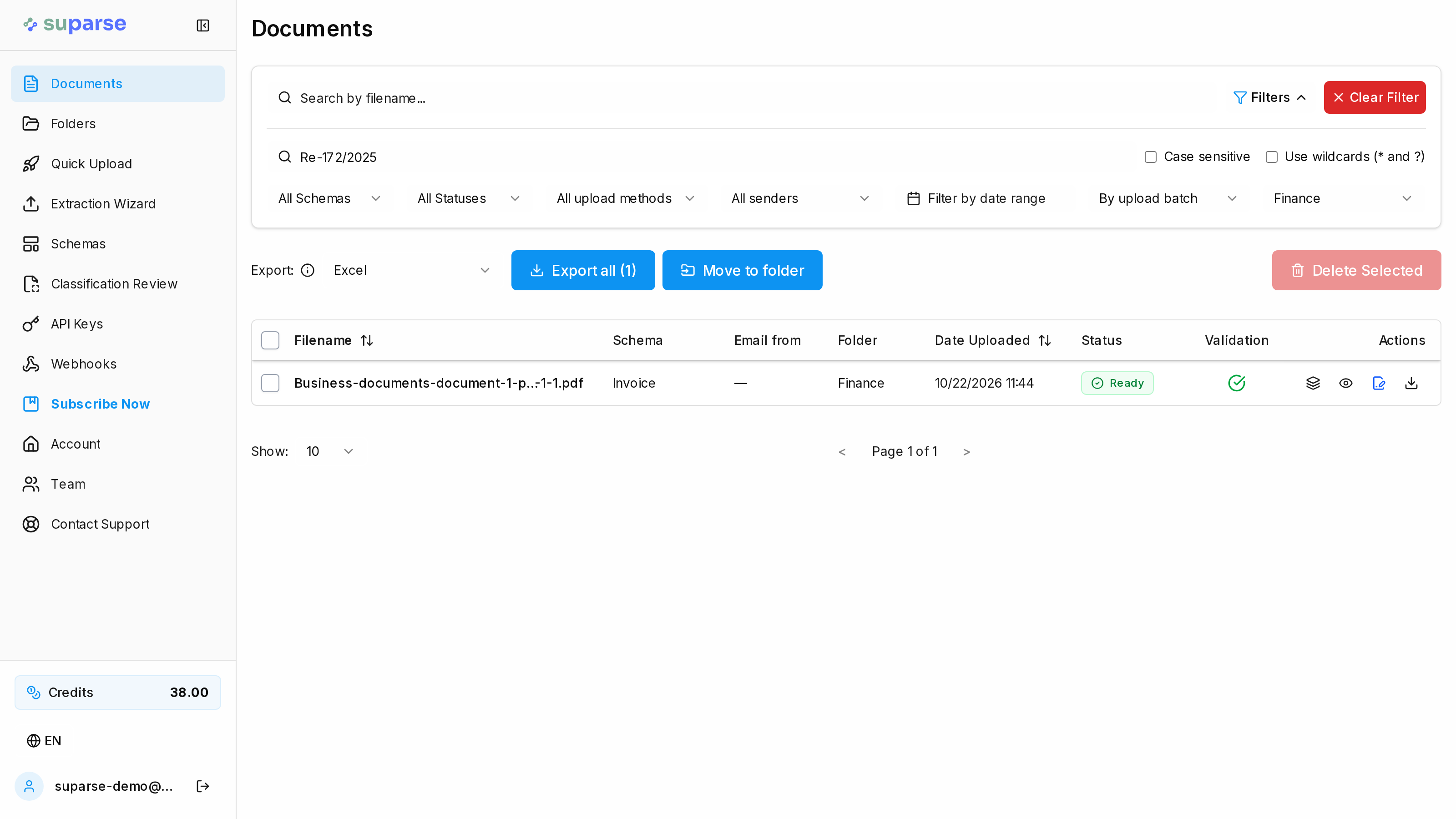
Search for the captured invoice reference Re-172/2025 within the Finance folder to find the relevant result. You can use the details from the invoice itself, even when its filename does not contain that reference.
Find a record, then keep related work easy to retrieve
Keep your team's processed documents useful long after the original upload.
Search by the detail you have
- Search fields and tables: Find text and numbers captured in general fields, line items, and other table data. A supplier name or product description can lead you back to the document.
- Narrow the search: Look for an invoice reference within your April invoices folder, or focus on the batch uploaded for a particular piece of work.
- Match partial references: Use wildcard searches when you remember only part of a value, or case-sensitive matching when capitalization matters.
Keep related work together
- Organize from the start: Choose a folder when uploading, or move documents into folders later as your work takes shape.
- Group a whole set at once: Move selected documents or all documents matching your current filters into a folder without handling each record individually.
- Give colleagues a shared starting point: Create and rename folders around the way your team works, so everyone can return to related records and narrow their search from there.
Narrow a search in three steps
- Start from the captured reference: Search for Re-172/2025 when the filename is unhelpful. The value must have been captured in a field or table.
- Add the Finance folder: Keep the reference search focused on the records grouped for that work, as shown in the example above.
- Add an upload batch if needed: If several records still match, narrow to the batch submitted together for the job you remember. Open the result to check its source.
Use the set you found
- Move or download the matching set: Move selected records or all filter matches into a folder. For file formats and export layouts, continue to Excel, CSV, and JSON exports.
Questions about document search and folders
Can I find an invoice without knowing its filename?
Yes. Search for a supplier name, invoice reference, amount, or line-item detail that Suparse captured during extraction. You can then narrow the results by folder or upload batch to find the document you need.
Does search include line items and the full text of the original PDF?
Search includes text and numbers captured in general fields and tables, including line-item values. It searches the extracted data rather than every word in the original PDF or image, so the detail you are looking for needs to have been captured.
Can I combine a value search with folder and upload-batch filters?
Yes. Use the filters together to focus on the relevant documents in your team workspace. For example, search an invoice reference within your April invoices folder and a particular upload batch. A batch groups files submitted together in one upload.
Can I search when I only remember part of a reference?
Yes. Wildcard searches help you match incomplete values: * matches any number of characters and ? matches one character. Searches ignore capitalization by default, and case-sensitive matching is available when you need it. Include at least three consecutive letters or numbers in your search.
Can I organize several documents into a folder at once?
Yes. You can move selected documents together or move all documents matching your current filters. You can also choose a folder during upload, making it easier to keep recurring work organized from the start.
Are folders shared with my team?
Yes. Folders help members of the same team workspace organize and find related documents. Access is controlled by team membership; moving a document into a folder does not make it private from other team members.
Will deleting a folder delete its documents?
No. The documents remain in your team workspace as unfiled records. You can find them again and move them into another folder.
Make your next document search easier
Create your Suparse account, process your documents, and find them again by the details that matter to your team. Keep recurring work organized in shared folders from the start.
Sign Up to Organize Your Documents