
Suparse Product Updates: September 2026

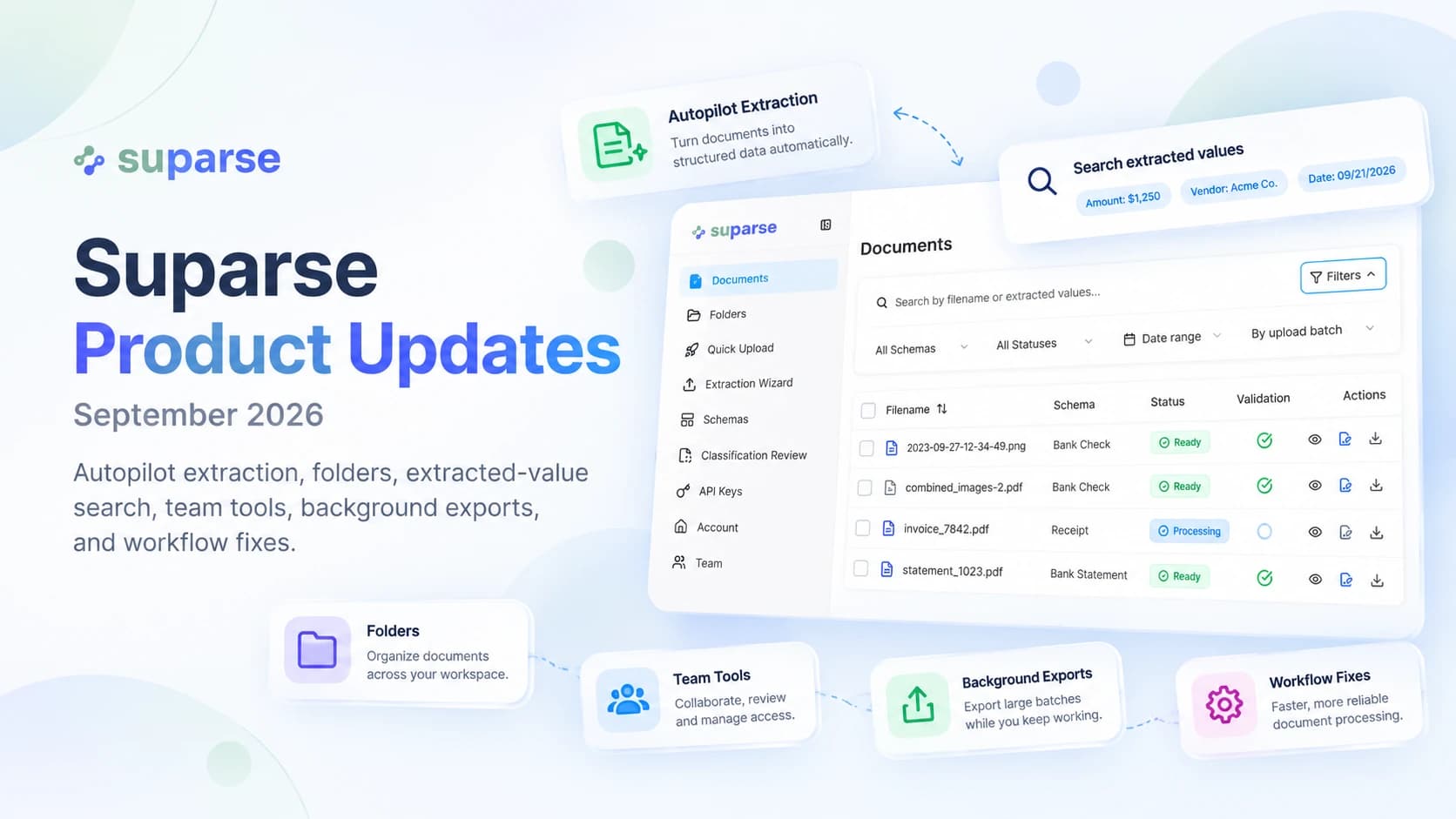
Suparse Product Updates: September 2026
As document volume grows, sorting mixed files, finding a processed record, checking what needs attention, and getting results to the right people can slow the whole workflow. Suparse’s September 2026 updates address those steps with Autopilot for mixed files, folders and extracted-value search, team controls, and background exports. Here’s what changed and where it can save your team time.
Key Takeaways
- Autopilot can identify and separate documents in mixed files, then choose or create an extraction schema.
- Folders, upload batches, extracted-value search, and status filters help teams organize and retrieve work.
- Teams with more than 1,000 exportable documents can track exports in the background.
- TIFF and WebP support, saved template tests, one-tab XLSX, clearer filenames, and targeted fixes round out the release.
What changed in Suparse in September 2026?
The September release connects improvements across document intake, workspace organization, team operations, and export delivery. That breadth matters because document extraction becomes an operational workflow as teams process more files: people need to get documents in, locate results, see what needs attention, and export results their team can use. Our guide to high-volume document processing covers the same scale challenges.
Release detail: Suparse’s September newsletter and changelog cover Autopilot, folders, extracted-value search, team tools, and exports, alongside file support and product fixes. For high-volume work, background export tracking is available to teams with more than 1,000 exportable documents. These updates span the path from upload to handoff.
Intelligent document processing (IDP) connects OCR, classification, extraction, and output. OCR turns image text into machine-readable characters; extraction maps relevant content into fields. IBM’s IDP overview describes these as connected stages.
The additions reinforce one another: a batch groups uploads, folders and extracted-value search offer different ways to retrieve documents, status filters narrow work, and exports carry results onward. Each control becomes more useful when it fits into the same workflow.How does Autopilot handle unknown or mixed document input?
Autopilot in Quick Upload is for files submitted before the user knows their document type. It can detect and separate documents inside a multi-document file, choose or create a suitable extraction schema, and extract results. Teams can start without sorting every file first, while retaining control over the types Autopilot can use.
Release detail: In Quick Upload, Autopilot can process unknown types and split multi-document files. Newly created document types are saved to the workspace, and users can limit Autopilot to types already saved there. If a PDF is password-protected, Suparse prompts for the password. - Suparse, September 2026 newsletter and changelog.
This is different from OCR alone. OCR reads characters; the broader IDP flow classifies files and maps information into structured fields. For mixed documents, systems typically identify logical document boundaries and route the resulting sections to an extractor. Review remains sensible when files are unfamiliar or errors would have significant consequences. For a practical example, see our mixed 100-page PDF walkthrough.
Evaluate an unfamiliar-file workflow by inspecting its decisions as well as its extracted values: check the split, confirm the schema fits each document, and see what the team can adjust when a type is new. This makes the path from demo to dependable process easier to assess.How can teams organize and find processed documents?
Teams can organize documents by folder or upload batch, search extracted text and numbers, and filter by operational status. Folders group work, batches identify files submitted together, and extracted-value search locates records by information inside the documents.
Release detail: Suparse’s extracted-value search accepts terms from 3 to 200 consecutive letters or numbers. It supports optional case-sensitive matching and
*or?wildcards. The grouped Status filter includes export availability and validation outcome, with states such as ready, unavailable, passed, and failed. - September 2026 changelog and newsletter.
Teams can choose a folder during upload, rename or delete folders, and move selected documents or all documents matching current filters. Deleting a folder preserves its documents and leaves them unfiled. Upload batches also filter the Documents list.
Search works on extracted text and numbers, not just filenames. The 3-character minimum and 200-character maximum matter for short codes and long strings. Wildcards broaden or narrow matching; the release does not describe semantic search. Microsoft’s metadata search guidance also illustrates how known values can retrieve specific records.
What team and export tools are new?
The update supports work across multiple teams and makes large exports trackable in the background. Users can switch their active team. Administrators can rename teams, manage member roles, and resend invitations; invitees can accept or decline and switch accounts if they opened an invitation under another email.
Release detail: Background exports are available to teams with more than 1,000 exportable documents. Teams can track running jobs, download results when ready, retry failures, or recreate an export from current data. An export can be started from selected documents or the current filters. - Suparse, September 2026 changelog.
The threshold is specific: teams need more than 1,000 exportable documents to use background export tracking. The release does not establish a maximum size or completion time. The Exports page shows running jobs, while retry and recreation provide recovery actions.
Team membership and export tracking raise a practical ownership question: who can access the workspace and download an export when it’s ready? The release adds team switching and membership controls, but does not specify additional role permissions. Confirm access against your own setup.How do the new file, template, and spreadsheet options help?
Several smaller additions make it easier to reuse setup and prepare results for handoff. TIFF and WebP files are now supported alongside PDF, JPEG, PNG, HEIC, and HEIF, up to 20 MB per file. In the editor, a successful document-type test extraction can be saved together with that document type for future use.
Release detail: Suparse’s September changelog lists TIFF and WebP support with a 20 MB per-file limit. It also adds “XLSX (one tab),” which places both general and table extraction data on one worksheet and is available for individual document downloads and exports. - Suparse, September 2026 changelog.
The one-tab format gives teams a flatter workbook when they want general fields and table data together. The best layout depends on how a receiving system handles repeating rows, so inspect a representative workbook before relying on a specific import process.
Downloads now use the original upload name instead of an internal ID. Split archives and workbooks include the source filename, and workbook names also include the document type. This can make results easier to recognize during handoff.
A saved test result can become outdated if its document type changes. Suparse now marks that test out of date after a type change, so retest before saving it again. This keeps the saved test associated with the current document type rather than silently treating an old result as current.
If you’re evaluating Suparse, try a representative mixed file and follow it through extraction, search, status review, and export. If you already use Suparse, start with a familiar upload batch and explore the new folder and extracted-value search controls. Together, these updates give teams more ways to handle mixed input, find documents, and get results ready for handoff. Assess the fit with your own document types, output needs, and review process.
Test Suparse with your own mixed documents
Try a representative file from upload through extraction, search, status review, and export. Start with free pages and assess the fit using your own document types, output needs, and review process.
Try Free - No Credit Card RequiredSeptember 2026 Product Updates FAQ
Does OCR automatically extract structured fields?
No. OCR converts text in an image into machine-readable characters. Extraction maps relevant information into structured fields or tables.
Can Autopilot process documents when I do not know their type?
Yes. In Quick Upload, Autopilot can choose a suitable extraction schema or create a document type and save it to the workspace before extracting results. Teams can restrict it to saved types. Suparse prompts for a password when a PDF is protected.
Can I search for a value inside an extracted document?
Yes. Search matches extracted text and numbers using 3 to 200 consecutive letters or numbers. Case-sensitive matching is optional; * matches any number of characters, and ? matches one. The search does not use semantic matching.
When can my team use background exports?
Teams with more than 1,000 exportable documents can track background exports, download completed results, retry failures, or recreate exports from current data. Exports can use selected documents or current filters. For under 1,000 documents the standard exports are more than sufficient.
Should teams review split or extracted results?
Yes, especially with unfamiliar files or consequential data. Check the split and extracted values on representative files before relying on automated routing.
Michal Raczy
Michal is the founder of Suparse.com. He has over 15 years of experience in delivering projects in data analysis, automation, and document processing. Michal solves complex automation and AI implementation challenges for both SMEs and large corporations, with a particular focus on document processing. Contact at michal@suparse.com.