
Match each document to the fields it needs
An invoice needs supplier details and line items. A delivery note needs shipment references and delivered quantities. Suparse identifies the document type so extraction uses a suitable set of fields and tables. Choose whether classification can use only your workspace types or a wider set, and decide how unfamiliar paperwork should be handled.
- Match documents to saved extraction settings
- Choose the available document types
- Control unfamiliar-document handling
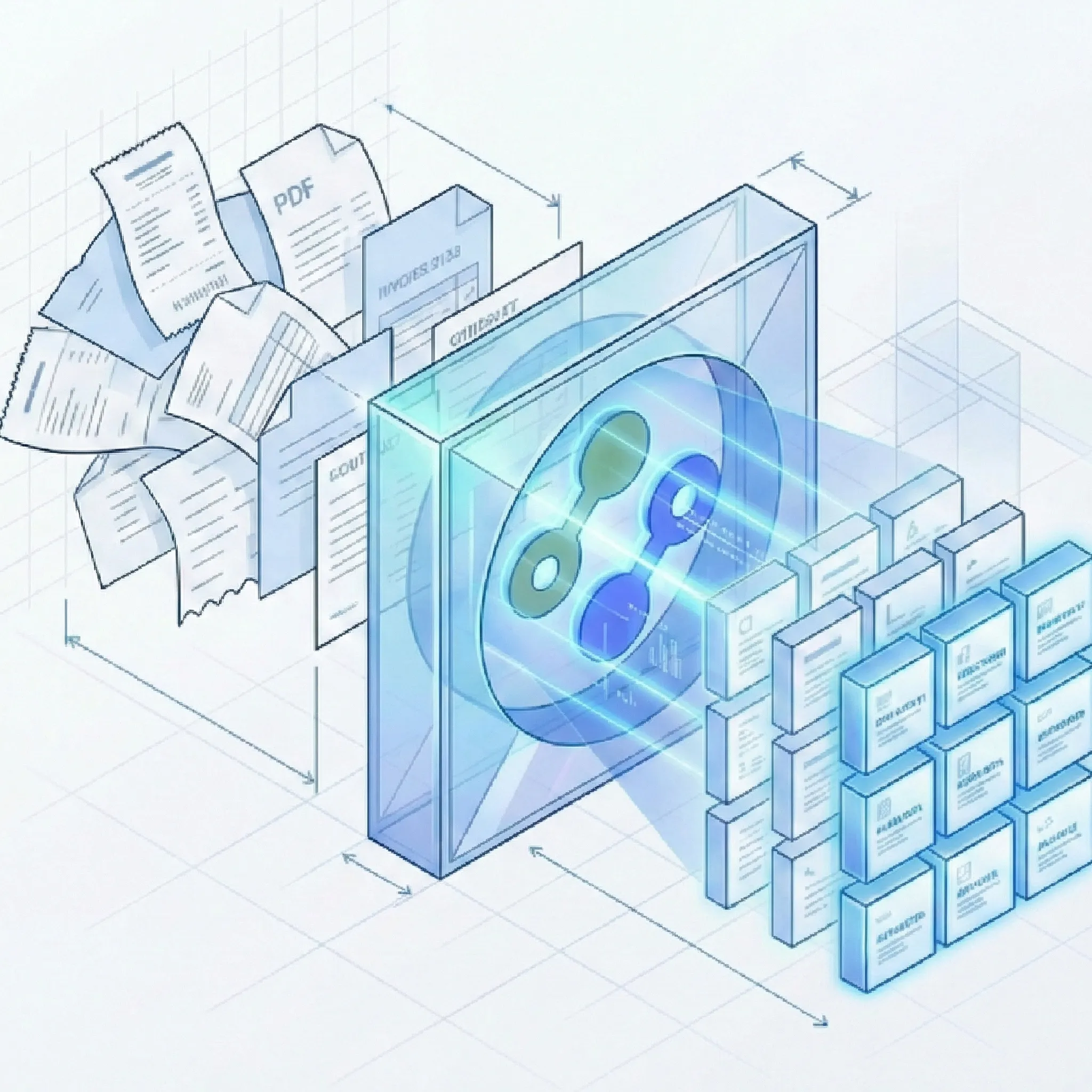
Make the type decision before extracting the details
Define the types classification can select
A document type is a reusable extraction setup: the general fields and repeating tables relevant to that kind of paperwork.
Start with your workspace types
- Save the information your team expects: Define invoice fields, shipment details, or other requirements with custom document parsing. Matching documents can reuse that setup.
Choose known types or a wider set
- Set the available choices: File Autopilot can use workspace and shared types by default. Email Autopilot uses workspace types by default, with shared types available as an option.
Connect classification to the whole process
- Place the type decision in context: Autopilot runs splitting, classification, and extraction together. Document splitting determines which source pages belong to each document.
Choose how unfamiliar documents are handled
You can keep processing limited to the document types your team has already defined, or let file uploads handle a wider range of incoming documents. A saved document type specifies the fields and tables you want to capture, such as invoice numbers and line items or account details and transactions.
| How you send documents | Which document types can be used | What happens to an unfamiliar document |
|---|---|---|
| File Autopilot with “Use only workspace document types” enabled | Only the types saved in your workspace | A document that does not match can be sent for review. No new type is created automatically. |
| File Autopilot with that option off (the default) | Your saved types and Suparse's shared types | Suparse can create and save a new reusable document type for you. |
| Email Autopilot | Your saved types by default, with the option to include Suparse's shared types | A document that does not match is sent for review. Email Autopilot does not create a new type automatically. |
Use your saved types when you want incoming documents to follow an agreed set of fields. Allow additional types for file uploads when you need to handle unfamiliar documents as well.
An invoice, a delivery note, and an unfamiliar report
Suppose your workspace contains Invoice and Delivery note types. A site inspection report also arrives, with no suitable match in the available types.
Invoice selects the invoice fields
- A familiar type: Use the saved supplier, invoice number, currency, totals, and line-item fields to capture invoice data.
Delivery note selects shipment fields
- Different document, different requirements: Use shipment reference, delivery date, products, and delivered quantities rather than the invoice field set.
The unmatched report follows your settings
- Workspace-only file processing: The report can go to review without a new type being created.
- Broader file processing: Suparse can create and save a reusable type when no suitable type is available.
- Email Autopilot: An unmatched report goes to review; a new type is not created automatically. Checking extracted values is a later step in validation and review.
Questions about selecting document types
What is AI document classification in Suparse?
Classification identifies the kind of document and helps select a matching document type. That type defines the fields and tables used for extraction, such as invoice totals or delivery-note quantities.
How do I keep processing limited to our agreed document types?
For File Autopilot, enable “Use only workspace document types.” Unmatched documents can go to review and no new type is created automatically. Email Autopilot uses workspace types by default; shared types can be included as an option.
What is different about unfamiliar files and unfamiliar emailed documents?
File Autopilot can create a new reusable type when no suitable type is available and workspace-only processing is off. Email Autopilot sends unmatched documents for review and does not create new types automatically.
Can each document type have different fields and tables?
Yes. Save the general fields and repeating tables relevant to each type. An invoice can use a line-item table, while a delivery note uses delivered quantities. See custom document parsing to define the information you need.
Choose the document types your intake should recognize
Create your Suparse account, save the fields your team needs for recurring documents, and test classification with familiar and unfamiliar samples.
Sign Up to Start Classifying