
How to Convert PDF to JSON: Extract Scanned Document Data

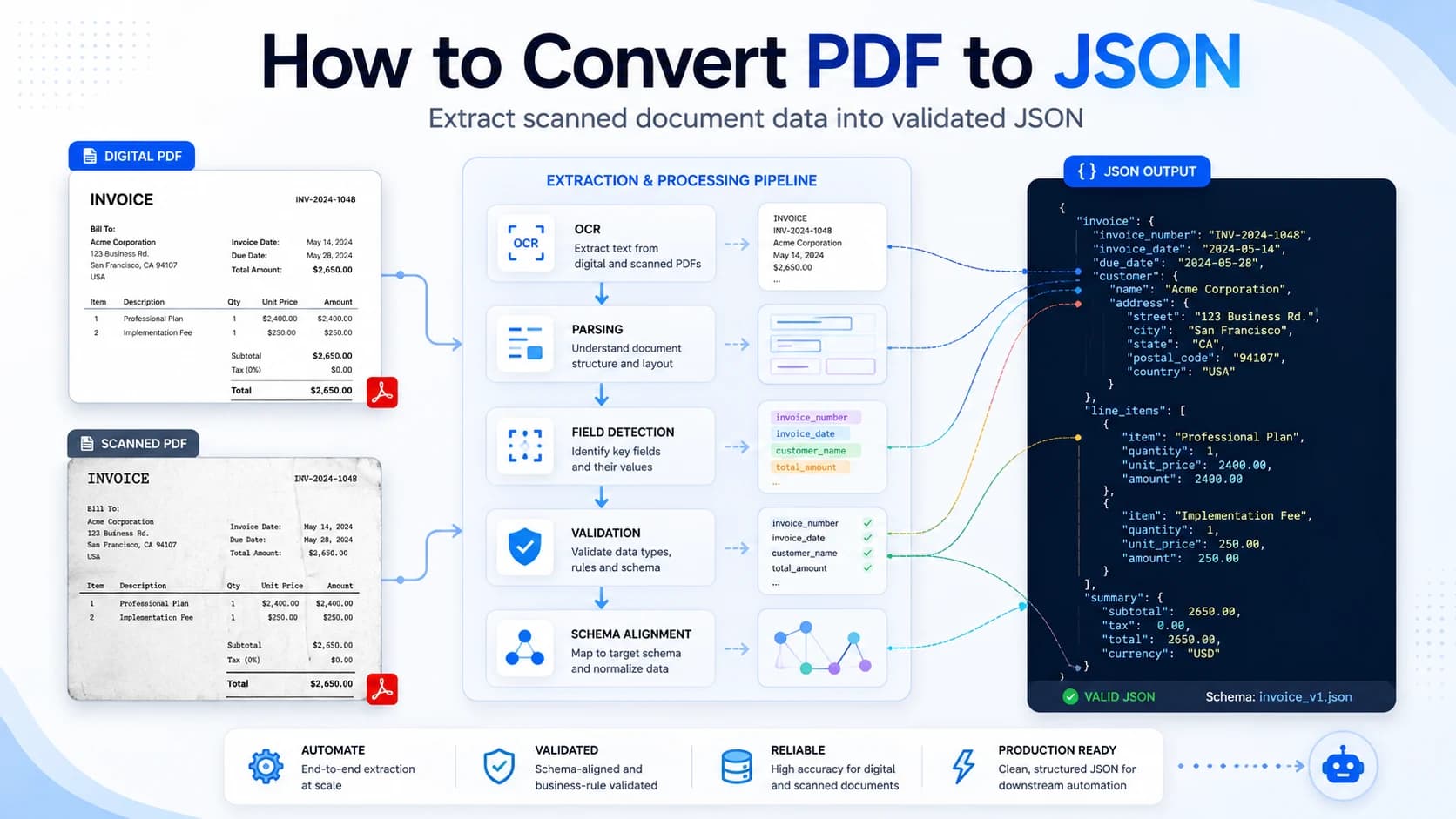
Converting PDF to JSON reliably means more than wrapping extracted text in braces. Start with the JSON contract your application needs, apply OCR when a PDF contains scanned page images, extract fields and tables into that schema, validate the result, and route uncertain documents for review. Only then should the data enter an ERP, database, queue, or automation.
This tutorial creates that production-minded workflow around an invoice. The same method works for receipts, purchase orders, bank statements, forms, and custom documents; the broader automated invoice data entry workflow shows how this extraction step fits into AP operations.
Key Takeaways
- Define the JSON schema before choosing extraction rules.
- Scanned PDFs need OCR or multimodal recognition.
- Preserve types, nulls, arrays, and source metadata.
- Validate business relationships before delivery.
- Suparse automates schema creation and extraction to deliver clean, high-quality JSON for downstream workflows.
PDF to JSON: Four Levels of Output
PDF to JSON can mean metadata, raw text, layout blocks, or business-ready fields. For automation, the useful definition is schema-aligned extraction: a stable object containing typed values, repeated rows, provenance, and validation status. A JSON array of page text may be valid JSON, but it is not an invoice record.
Consider four possible outputs:
- Metadata JSON - title, author, page count, and creation date.
- Text JSON - page text or lines stored in an array.
- Layout JSON - paragraphs, tables, coordinates, fonts, and reading order.
- Business JSON -
invoice_number,currency, totals, and line items in a contract your system understands.
Adobe documents how layout-aware extraction can retain headings, lists, tables, figures, reading order, and coordinates. Google Document AI likewise represents OCR text and layout in a structured Document object (Adobe, Google Cloud). Those formats are useful for search, reconstruction, and analysis. Transactional automation usually needs one more step: mapping document content to business fields.
Citation capsule: A PDF-to-JSON pipeline is production-ready only when its output has stable field names, predictable types, explicit missing values, repeated rows, and source identity. Text blocks describe a page; schema-aligned JSON describes the business event that downstream software must process.
Why Scanned PDFs Need OCR
A scanned PDF usually stores each page as an image, not as selectable characters. Text-only PDF libraries therefore have nothing useful to parse. OCR or multimodal document processing must recognize the image content before a system can identify labels, values, tables, checkboxes, handwriting, or document boundaries.
You can test the distinction manually: if text cannot be selected or searching for a visible invoice number returns no result, assume OCR is required. Automated pipelines should detect this condition instead of trusting the filename or MIME type.
Recognition quality changes with:
- low resolution, blur, compression, and poor contrast;
- skewed or rotated pages;
- handwriting and mixed languages;
- multi-column layouts;
- borderless, nested, or multi-page tables;
- stamps, signatures, checkboxes, and annotations;
- one PDF containing several logical documents.
Suparse prepares difficult scans before mapping them to JSON. Its image enhancement handles skew, blur, poor lighting, low resolution, faxes, mobile photos, and dot-matrix-style scans. The platform also supports handwriting and more than 100 languages, reads complex multi-page tables, auto-chunks long documents, and can split and classify mixed-document PDFs before extraction.
OCR alone still returns text. It does not guarantee that “Total” was mapped to grand_total, that a table row remained intact, or that a date was normalized correctly. AWS Textract, for example, returns blocks, relationships, tables, key-value pairs, and confidence data because document understanding requires structure beyond character recognition (AWS).
Citation capsule: Scanned PDF conversion is a two-part problem: first recover document content from pixels, then map that content into a business schema. Treating OCR output as the final JSON skips the harder task-preserving meaning, types, rows, and relationships.
Step 1: How Should You Design a PDF JSON Schema?
Design the schema from the downstream decision, not from the visual order of the PDF. Name fields by business meaning, assign strict types, model repeating records as arrays, make missing values explicit, and include provenance. This contract becomes the target for extraction and the boundary for validation.
Here is a practical invoice result:
{
  "schema_version": "1.0",
  "document_type": "invoice",
  "invoice_number": "INV-2026-1042",
  "issue_date": "2026-07-01",
  "due_date": "2026-07-31",
  "currency": "USD",
  "supplier": {
    "name": "Northwind Components, Inc.",
    "tax_id": "12-3456789"
  },
  "line_items": [
    {
      "description": "Industrial sensor",
      "quantity": 4,
      "unit_price": 125.0,
      "line_total": 500.0
    }
  ],
  "subtotal": 500.0,
  "tax_total": 41.25,
  "grand_total": 541.25,
  "source": {
    "document_id": "doc_7f31",
    "file_name": "invoice-1042.pdf",
    "page_start": 1,
    "page_end": 1
  },
  "review": {
    "required": false,
    "reasons": []
  }
}
IDs such as invoice numbers should remain strings even when they look numeric. Monetary amounts should be numbers after currency separators are normalized. Dates should use one agreed format, commonly ISO YYYY-MM-DD. Use null for an expected field that is absent or unreadable; never turn a missing tax amount into 0 unless the document explicitly says the tax is zero.
For evolving integrations, include schema_version. Additive changes are usually easier to adopt than renamed or removed fields. If a supplier-specific “Project Code” becomes important, add it deliberately rather than burying it in a generic notes field.
Step 2: How Do You Define Custom Extraction Fields?
Define every field with a name, data type, extraction instruction, and required status. Table columns need the same treatment. Clear field definitions help the extraction layer distinguish similar values and give validation code an unambiguous contract.
A useful field specification might look like this:
| Field | Type | Required | Extraction intent |
|---|---|---|---|
invoice_number | string | yes | Supplier’s unique invoice identifier |
issue_date | date | yes | Invoice issue date, normalized |
currency | string | yes | Three-letter currency code |
line_items | table | yes | Description, quantity, unit price, total |
project_code | string/null | no | Buyer project reference, not PO number |
grand_total | number | yes | Amount payable including tax |
Suparse offers three ways to create that extraction contract:
| Schema path | Best fit |
|---|---|
| Pre-trained model | Standard documents such as invoices, receipts, bank statements, purchase orders, and shipping documents |
| Extended model | A standard document that also needs custom fields such as project_code or gl_account |
| AI Schema Generator | A unique document type that needs a new field and table structure |
None of these paths requires a labeled training set or model-training project. Teams can generate or edit schemas in plain language through the UI instead of maintaining regex, JSONPath, or layout-specific parsing code. Fields can be text, numbers, dates, booleans, choices, or tables, with required status and validation rules attached to the contract.
This makes Suparse a strong option when the desired result is business JSON rather than a vendor-neutral page layout. It combines OCR, classification, schema creation, extraction, validation, review, and export in one workflow. Teams comparing that approach with other platforms can use this document extraction software guide.
Schema-first rule: do not ask, “What can I extract from this PDF?” Ask, “What must be true before my system may act on this document?” The first question produces a demo. The second produces fields, constraints, provenance, review routes, and a measurable acceptance test.
Step 3: How Do You Process a PDF with Suparse?
Process the document asynchronously: request a secure upload URL, upload the file directly to storage, confirm the upload, poll the task, then retrieve the completed document JSON. Choose a template or classification mode before processing, and enable splitting when one PDF may contain multiple logical documents.
The documented lifecycle is:
- Call
POST /api/v1/documents/upload-url. - Upload the PDF to the returned storage URL.
- Call
POST /api/v1/documents/confirm-upload. - Poll
GET /api/v1/tasks/{task_id}. - Retrieve
GET /api/v1/documents/{document_id}.
Suparse task states include upload, classification, processing, completion, failure, and insufficient credits. The extraction response contains document identity, filename, page range, template ID, credits used, and extracted_data. For a broader view of the lifecycle and integration options, see the document extraction API guide. Consult the current Suparse extraction API reference for the API host, authentication header, and exact request bodies; those details should not be guessed or hard-coded from an old tutorial.
Use idempotency in your own orchestration even if the provider handles parts of it. Store a client-side ingestion key, the source checksum, upload reference, task ID, and document ID. On a timeout, resume from the last confirmed state instead of starting another paid extraction.
Convert a PDF to JSON with the Suparse CLI
The fastest terminal workflow uses the official Suparse Python SDK and CLI. After installing the package and setting your API key, one command uploads the PDF, waits for processing, and downloads clean JSON:
pip install suparse
export SUPARSE_API_KEY="your_api_key_here"
suparse process invoice.pdf --with-split -o results.json
The --with-split option is useful when a PDF may contain several documents or mixed document types. Suparse separates and processes them with the appropriate templates. Add --cleanup when the downloaded result is all you need and the source documents should be deleted from Suparse after processing.
Extract PDF data in Python
The synchronous Python client is equally direct. extract() handles upload, polling, and result retrieval, while r.data contains the structured fields produced for each successful document:
import json
from pathlib import Path

from suparse import SuparseClient


with SuparseClient() as client:
    batch = client.extract("invoice.pdf", split=True)

    if batch.failed:
        raise RuntimeError(batch.failed[0].error)

    extracted = [result.data for result in batch.succeeded]
    Path("results.json").write_text(
        json.dumps(extracted, indent=2, ensure_ascii=False),
        encoding="utf-8",
    )
For FastAPI or another asynchronous pipeline, replace SuparseClient with AsyncSuparseClient and await extract(). Both clients support files, folders, iterables, templates, cleanup, and progress callbacks, so the same integration can grow from one PDF into a batch workflow.
Ask Codex or Claude through Suparse MCP
The Suparse MCP server lets Codex, Claude Code, or Claude Desktop produce clear PDF-to-JSON output without custom upload or polling code. It requires Node.js 20 or newer and a Suparse API key. Add it to Claude Code with:
claude mcp add suparse -e SUPARSE_API_KEY=your_api_key -- npx -y @suparse/mcpFor Codex, add the server to ~/.codex/config.toml:
[mcp_servers.suparse]
command = "npx"
args = ["-y", "@suparse/mcp"]

[mcp_servers.suparse.env]
SUPARSE_API_KEY = "your_api_key"
Restart the client, then make the desired result explicit: Use Suparse MCP to extract ./invoice.pdf and download clean JSON to ./exports. The assistant can also list available Suparse templates, process a folder, choose JSON, CSV, XLSX, or Google Sheets output, and delete processed documents after the result has been downloaded.
Watch out: do not retry every failure identically. Network timeouts and rate limits may be transient. An unsupported file, invalid schema, or insufficient credits requires a different action. Keep technical failures separate from semantic failures such as missing totals.
Step 4: How Do You Validate the Extracted JSON?
Suparse returns clean, schema-aligned JSON and performs validation as part of the extraction workflow. Configure field types, required fields, table columns, and rules such as total comparisons in the template. Suparse then applies that contract while it extracts the document, so the completed result is consistent and ready for normal downstream automation.
| Suparse validation | What it confirms |
|---|---|
| Mandatory fields | Required identifiers, dates, totals, or table columns are populated |
| Invoice consistency | Subtotal plus tax agrees with the invoice total |
| Bank statement reconciliation | Opening balance and transactions reconcile to the closing balance |
| Data standardization | Dates, currencies, and numbers follow consistent output formats |
These controls mean you do not need to build a second generic validator merely to repair Suparse output. Dates, numbers, booleans, text fields, choices, and tables follow the schema you defined. For a well-configured template, the returned JSON is clean, dependable, and ready for its downstream destination.
Citation capsule: Suparse combines schema creation, extraction, and validation in one document workflow. The result is structured JSON that follows configured field types and business rules, rather than raw OCR text that developers must clean and reshape before every integration.
Your application may still apply company-specific approval policies after extraction. A business might require human approval above a payment threshold, reject a supplier outside its allowlist, or check whether a purchase order remains open. Those controls govern what the organization permits; they are not a correction layer for the extracted JSON.
When a document needs review, Suparse provides a side-by-side interface and audit history. Once approved, the same clean structure can flow to an ERP, database, queue, or automation. The related guides on bank statement data validation and invoice validation rules show how these business controls can be layered onto a validated extraction.
Step 5: How Should Confidence and Human Review Work?
Suparse can send selected documents through human-in-the-loop verification before export. A reviewer sees the original document beside its extracted fields, corrects values in place when necessary, and approves the final record. This gives sensitive workflows a verified JSON result without forcing developers to build a separate review application.
Teams can invite reviewers, assign roles, and control access to document groups. The audit log records who verified or changed a document, what was edited, and when the action occurred. That traceability is useful for finance, healthcare, logistics, and other workflows where an approved value must remain attributable.
Automatic validation and human verification serve different purposes. Schema and business rules establish that the JSON is structurally and mathematically sound. Human review supplies an explicit approval step for high-risk documents or policy exceptions. Suparse does not expose per-field percentage confidence scores, so route review using validation outcomes, document type, and business risk instead of an invented numeric threshold.
A sensible policy is:
- Accept automatically: the schema and business rules pass, the document class is expected, and no approval policy applies.
- Verify in Suparse: the transaction requires human approval, an operator must confirm a sensitive field, or the organization mandates four-eyes review.
- Reject/reprocess: OCR produced no usable content, the file type is unsupported, or document classification is wrong.
Track field-level precision and recall on a labeled sample, exact match for identifiers and dates, line-item accuracy, straight-through processing rate, human-review rate, technical failure rate, latency, and cost per successfully processed document. The IDP Leaderboard methodology is useful because it evaluates document understanding at field and table level rather than treating valid JSON syntax as success.
Step 6: How Do You Send JSON to Downstream Systems Safely?
Publish only validated records, preserve the source and schema version, and make delivery idempotent. Write to a staging table or queue before updating the system of record. Consumers should be able to distinguish a new document, a corrected extraction, and a replay of an event already handled. At larger volumes, the queueing, isolation, and monitoring choices become part of high-volume document processing.
Common targets include:
- an ERP or accounting application via REST;
- PostgreSQL or a data warehouse;
- an object store for raw and normalized JSON;
- a queue for enrichment and approval;
- CSV, Excel, or Google Sheets for operational review.
Suparse exports JSON, CSV, Excel, accounting-oriented files, and Google Sheets output. Webhooks send extraction results to your application or workflow when processing completes, with subscriptions by document template and upload source. For systems such as QuickBooks, Xero, Zapier, Make, or Power Automate, connect a compatible webhook endpoint or build an integration through the API; native one-click connectors are not currently available.
Include document_id, source filename, page range, extraction timestamp, and schema_version in the record you send. Use the document ID plus schema version as an idempotency key, or maintain an explicit external ingestion ID. Redact sensitive values from application logs.
Citation capsule: Delivery is part of extraction quality. A correct total can still cause damage if the same invoice is posted twice, a corrected result overwrites an approved record silently, or logs copy sensitive JSON into a less protected system.
Common PDF-to-JSON Failures to Prevent
Prevent the failures that produce plausible-looking output: assuming every PDF has text, flattening tables, parsing varied layouts with regex alone, accepting inconsistent types, dropping provenance, and posting unreviewed results. These errors often survive a happy-path demo because the JSON parses successfully.
| Failure | Why it happens | Control |
|---|---|---|
| Empty output from a scanned PDF | No text layer | Detect and apply OCR |
1,250.00 becomes 1.25 | Locale normalization error | Parse with known currency/locale rules |
| Line items become one text block | Layout lost | Use table extraction and array validation |
| Invoice number becomes a number | Type inferred from appearance | Declare IDs as strings |
Missing field becomes 0 | Unsafe default | Use null plus a review reason |
| Same invoice posts twice | Blind retry | Persist an idempotency key |
| Wrong template applied | Mixed batch or classification error | Validate document type and required fields |
Regex remains useful for deterministic cleanup and validation. It is a poor primary strategy for suppliers that change layouts, tables that continue across pages, or labels that vary by language. Use it at the edges, not as your entire document-understanding layer.
Securing a PDF Data Extraction Pipeline
Secure the original PDF, extracted JSON, credentials, logs, and review interface as one data lifecycle. Encrypt traffic and storage, minimize retention, restrict access by role, audit changes, and confirm where vendors process data. Do not let observability copy financial, medical, or identity data into general logs.
Suparse states that data is encrypted in transit and at rest, customer documents are not used to train public AI models, users control retention, and zero-retention configurations are available. It also supports audit trails and private deployment options. Verify the exact deployment, DPA, subprocessors, retention behavior, and regional requirements for your organization before processing regulated documents.
For your integration:
- keep API keys in a secret manager;
- use short-lived upload URLs;
- log identifiers and status, not document content;
- delete temporary files after confirmed delivery;
- restrict reviewers to the document groups they need;
- test deletion and incident-recovery procedures.
Security claims and pricing can change. Treat current vendor documentation and signed contractual terms as authoritative, especially for regulated workloads.
When Is Suparse a Good Choice for PDF to JSON?
Suparse is a good fit when you need scanned or digital business documents converted into custom, typed JSON without maintaining OCR and layout-specific parsers yourself. It is especially relevant for invoices, receipts, bank statements, purchase orders, logistics documents, and mixed PDFs that benefit from splitting, classification, validation, and review.
A local library may be the simpler choice for stable, digital-native PDFs when raw text or layout blocks are enough. A self-hosted stack may be necessary when documents cannot leave a controlled environment. A general cloud document API may suit teams already standardized on that cloud.
Choose on representative evidence. Assemble a test set across suppliers, languages, scans, tables, and known edge cases. Compare field accuracy, table integrity, review rate, latency, failure categories, engineering effort, and total cost. The winning tool is the one that delivers trustworthy data under your constraints-not the one that produces the prettiest single-document demo.
The durable workflow stays the same: define the contract, recognize the document, extract to the contract, validate, review exceptions, and deliver idempotently.
Turn your PDFs into structured JSON
Define the fields you need, process scanned or digital documents, and send validated results into your workflow with Suparse.
Try Free - No Credit Card RequiredFrequently Asked Questions
Can a scanned PDF be converted directly to JSON?
Yes, but the workflow must first recognize the page images with OCR or multimodal document processing. A schema-based extraction step then maps the recognized content into typed JSON fields.
What is the difference between PDF text extraction and PDF-to-JSON extraction?
Text extraction returns characters, lines, or layout blocks. PDF-to-JSON extraction for automation returns named business fields, typed values, arrays, validation results, and document provenance.
Should I use a local library or a PDF-to-JSON API?
Use a local parser for predictable digital PDFs when you can maintain the rules. Use a document extraction API for scanned, varied, multilingual, or table-heavy documents and when faster production deployment matters.
How should missing PDF fields appear in JSON?
Represent an expected but unreadable or absent value as null, then attach a validation error or review status. Do not silently substitute zero or an empty string when those values carry different business meaning.
Michal Raczy
Michal is the founder of Suparse.com. He has over 15 years of experience in delivering projects in data analysis, automation, and document processing. Michal solves complex automation and AI implementation challenges for both SMEs and large corporations, with a particular focus on document processing. Contact at michal@suparse.com.