
Keep Google Sheets current with extracted document data
Keep your team's document register growing without copying each extraction result by hand. Suparse adds new results to a dedicated Google spreadsheet for each document type. Connect your Google account, preview the columns, and choose separate document and item tabs or one combined tab. Decide whether results arrive after extraction, validation, or reviewer finalization, and add eligible stored results by date range.

Choose your Google Sheets workflow
Make three choices before the first row arrives
Build a register around the work your team needs to see
The spreadsheet stays useful when it follows one kind of document, comes from the right intake route, and receives data at the point your process can use it.
Give each document type its own register
- Keep relevant fields together: Maintain one automatic spreadsheet per document type. Your invoice register can keep its own fields and line items, while bank statements or other documents have a separate spreadsheet and delivery timing.
Follow the way your documents arrive
- Include the work you need: Build a register from emailed documents, direct uploads and API submissions, or all of those sources. Keep an email-based process focused, or bring the same document type together across intake channels.
Add records when your team is ready
- After extraction: Add results as soon as processing finishes when your team needs an ongoing view of incoming work.
- After validation: Add results once they pass the checks defined for that document type.
- After review: Let a teammate inspect and finalize the values before they reach the spreadsheet. See how Suparse checks and reviews extracted data.
A setup example: emailed invoices delivered after validation
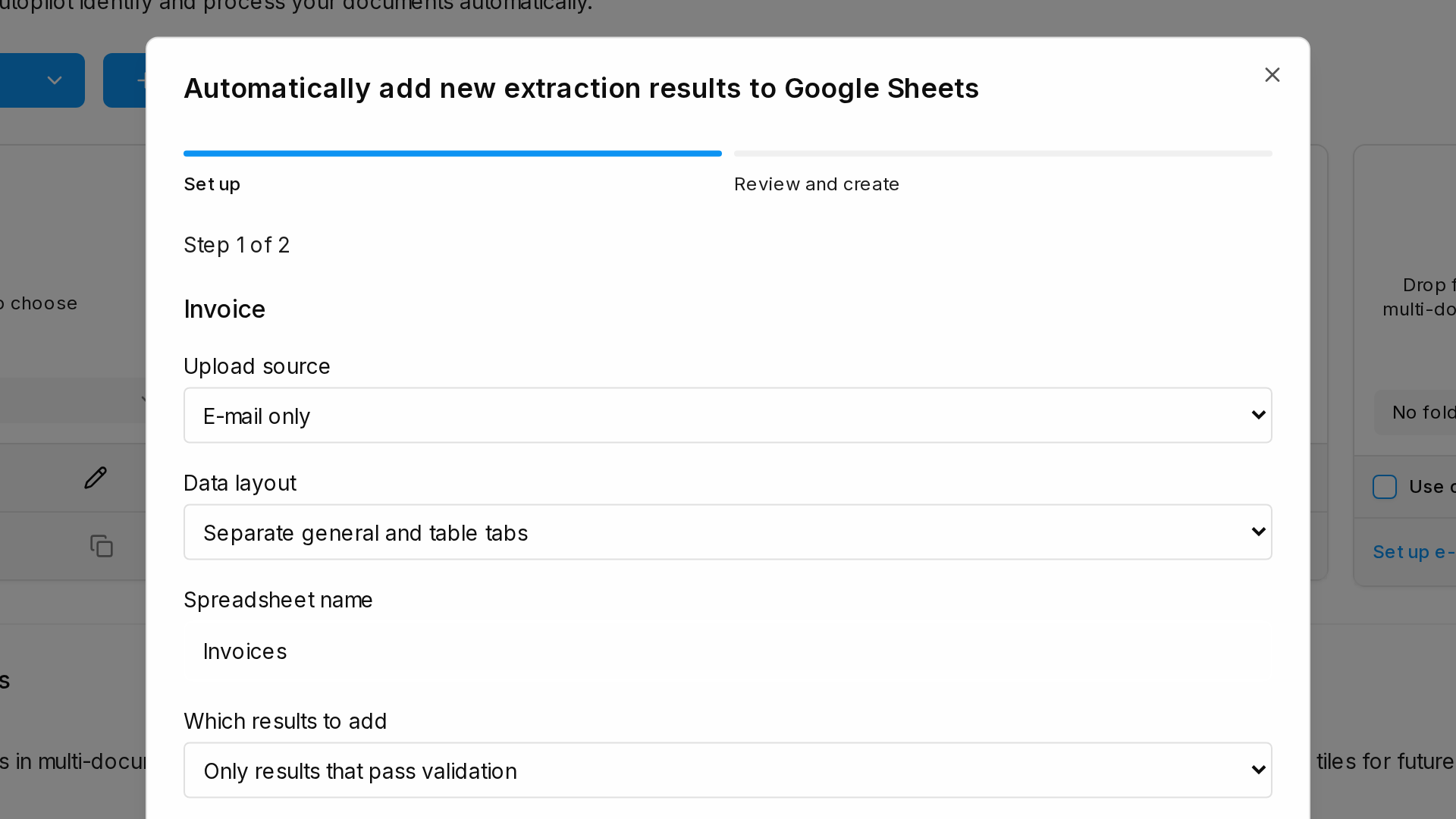
Suppose uploaded invoices are handled separately, but emailed invoices should reach a new spreadsheet once their configured checks pass. Select the invoice document type, include email intake, and choose delivery after validation. Connect a Google account, name the spreadsheet, and preview the layout before Suparse creates it in that account's Drive.
| Setup decision | Selection for this example | Effect |
|---|---|---|
| Document type | Invoice | Columns follow this type's saved fields and tables |
| Intake source | Email only | Direct uploads and API submissions stay outside this destination |
| Delivery gate | After validation | Results wait until the configured rules pass |
| Row layout | Separate tabs | One document summary row, with repeated details in an item tab |
Choose the row layout in the preview
| Layout | Tabs created | How document and table values are arranged |
|---|---|---|
| Separate | Suparse Documents and Suparse Items | One row per document in the first tab; one row per extracted item in the second, connected by document reference |
| Combined | Suparse Data | Document values repeat beside each item; documents without table items still receive a row |
Every layout includes the original filename, document reference, and received time. Document and combined tabs also link to the Suparse result. Email-originated results include sender, subject, and email received time; those email fields are blank for direct uploads.
For source-specific examples, see forwarded emails to Google Sheets, PDF fields and tables to Google Sheets, or an invoice register with due dates and currencies.
Start with documents already processed in Suparse
Know which values will reach your spreadsheet
Delivered rows are durable copies. Edits and reprocessing do not update rows already delivered.
Use latest saved values for eligible held results
- Choose the values before delivery: For eligible results held before delivery, where delivery has not been planned, you can explicitly choose to send the latest saved values. This option does not resend already-delivered results.
Preview history before adding it
- Check readiness by received date: The historical-results preview distinguishes results ready to add, results still waiting, and records already delivered to this destination.
Questions about automatic Google Sheets delivery
Can Suparse add results to a Google Sheet we already use?
Setup creates a new spreadsheet in the connected Google account's Drive. Delivery is one-way from Suparse to Sheets. Edits and reprocessing do not update rows already delivered.
Can we sort and customize the spreadsheet?
Use filter views to browse and sort delivered data, and additional report tabs for analysis. Keep the managed data tabs and hidden delivery log unchanged. Do not edit, sort directly, delete, or move managed tabs.
Does a validation pass mean someone approved the document?
No. A validation pass means the rules configured for that document type passed. Reviewer finalization is a separate choice for teams that want a person to inspect and finalize the extracted values before delivery.
Can document fields and line items go into separate tabs?
Yes. Use separate document and item tabs for a summary view alongside detailed line items, or choose one combined data tab with document values repeated beside each item. You can preview the rows and columns before creating the spreadsheet. The layout is set when the spreadsheet is created.
Can we add documents that Suparse processed before setup?
Yes. Choose a received-date range and add stored results to the destination without running extraction again or using new extraction credits. Results already delivered to that same destination are skipped.
Set up your first automatic Sheets destination
Create your Suparse account and start with the documents your team tracks every week. Preview the rows, choose when results arrive, and spend less time moving data by hand.
Sign Up to Automate Your Spreadsheet