
How to Extract Order Details from Emails into Excel

To extract order details from emails into Excel, send order confirmations to Suparse, define fields for order details and repeating line items, review each source result, then download the selected results as an XLSX workbook. A message body and its attachment are processed as separate sources, so check whether they represent one order or two before reporting on them.
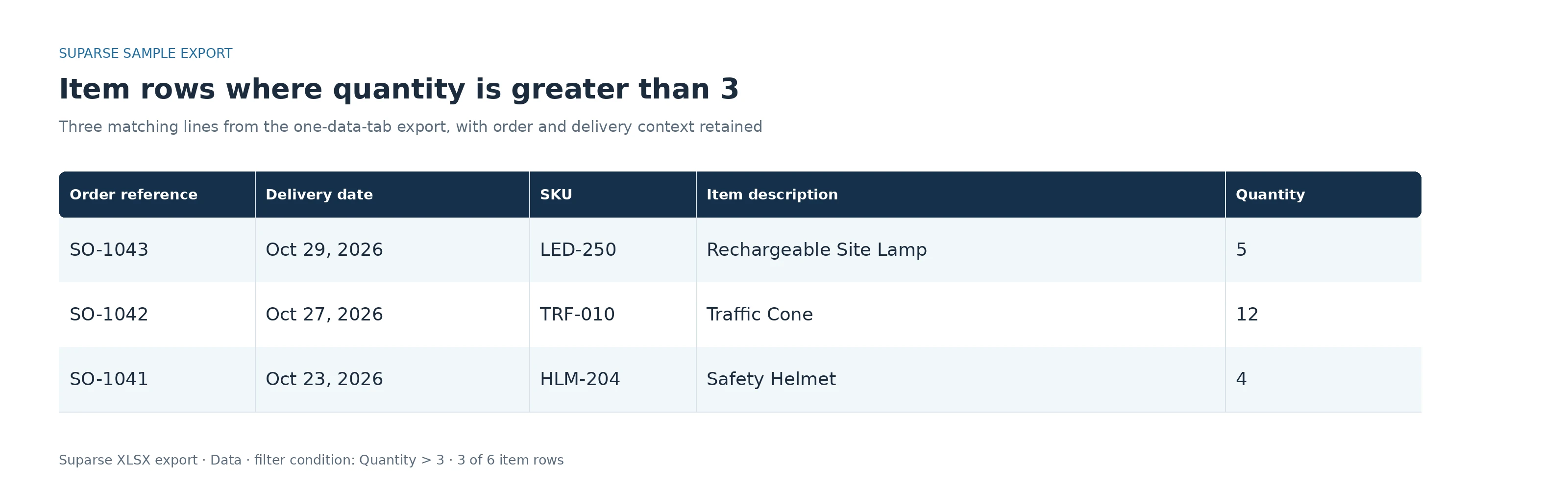
The sample below shows three item rows from the one-tab workbook after filtering for quantities greater than 3. The full fictional sample contains four distinct orders, six item rows, 28 units, and $487.50 USD in order totals.
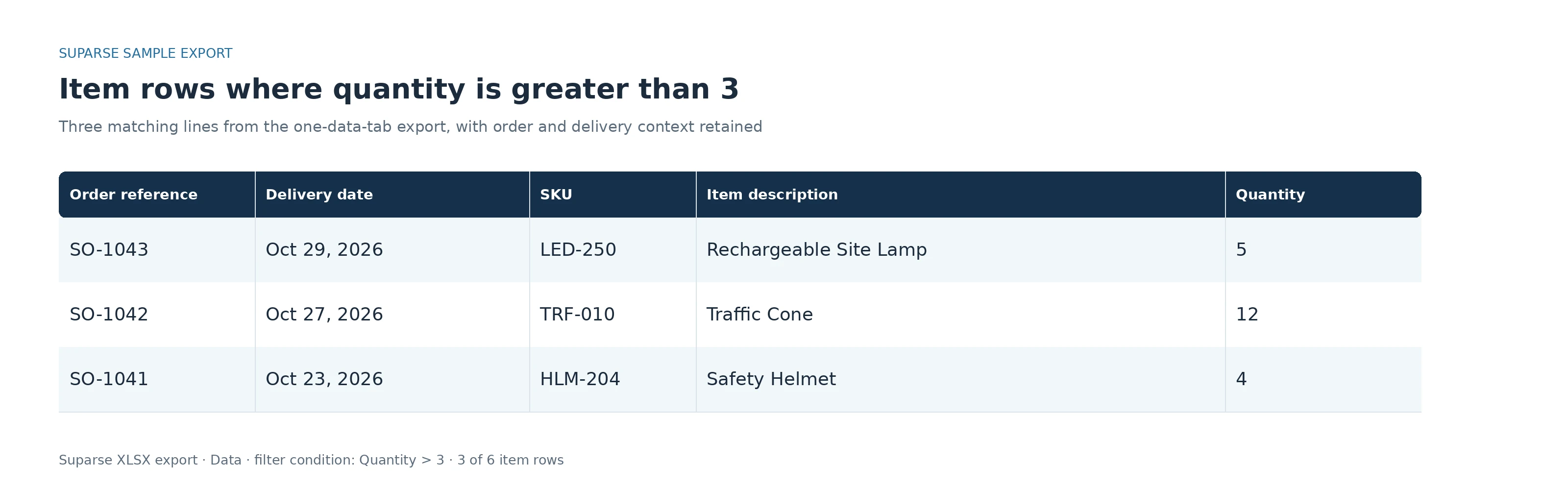
Three of six item rows match the quantity filter, with each order reference and delivery date beside its item.
Download the one-tab sample workbook, the standard sample workbook, and the fictional SO-1044 confirmation PDF.
| Order reference | Delivery date | Order total (USD) |
|---|---|---|
| SO-1041 | Oct 23, 2026 | $154.00 |
| SO-1042 | Oct 27, 2026 | $96.00 |
| SO-1043 | Oct 29, 2026 | $164.50 |
| SO-1044 | Oct 30, 2026 | $73.00 |
| Sample total | 4 orders | $487.50 |
The three email-body sources are SO-1041, SO-1042, and SO-1043. SO-1044 comes from the separate attached PDF.
The totals reconcile as $154.00 + $96.00 + $164.50 + $73.00 = $487.50. Across those four orders, the workbook has six item rows and 28 units.
Key takeaways
- Keep one set of order fields alongside repeating rows for each item.
- Review each message and attachment result against its source before reporting.
- Use standard Excel for separate order and item tabs, or one tab to filter line items with their order details.
This guide uses fictional order confirmations and native Suparse exports; sample setup reviewed on 24 October 2026.
Start turning your own order confirmations into reviewable spreadsheet data. Create a Suparse account.
Choose the columns your report needs
Decide which values belong once per order and which repeat for every product line. For the sample, order-level fields are order reference, order date, delivery date, customer, currency, and order total. Repeating item fields are SKU, product, quantity, unit price, and line total.
| Field group | Example columns | How they appear in the data |
|---|---|---|
| Order details | Reference, dates, customer, currency, total | One set of values for each confirmation |
| Line items | SKU, product, quantity, unit price, line total | One row for each item in the order |
Keep both groups if a report needs to filter items while retaining the order that contains them. The saved field setup in this example uses a reusable Order Confirmation template, so the same column definitions apply across the selected results.
Step 1: Choose what the email intake should process
Open the email upload settings for the intake address and select the source content that matches your workflow. The example is set to process email body and attachments. Copy the generated address from your own settings, then forward relevant confirmations to it or route messages there from your mailbox.
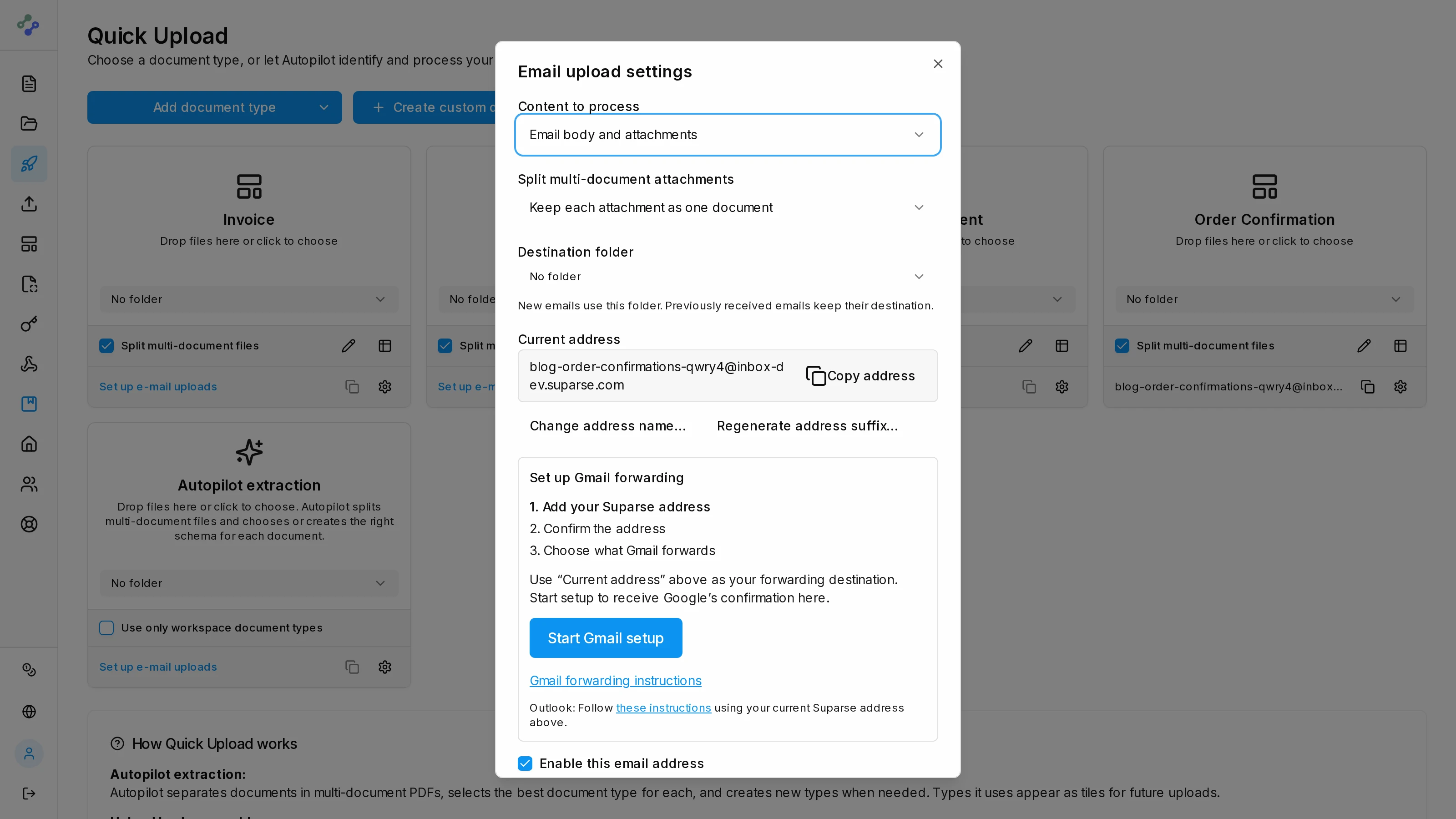
Sample intake set to process bodies and attachments.
Each message body or attachment produces its own result. Suparse does not combine details from the email text and attached confirmation into a single order automatically. If both sources describe the same order, use the reference and source to avoid counting it twice. For more setup options, see Email to Excel. For teams capturing customer order details before a sales handoff, see the email order data capture overview. If the order details arrive in attached documents, the email attachment parser explains supported files and attachment-only processing.
Step 2: Review the order fields and item rows
Open each result and compare its values with the source before you export it. Check the order reference and delivery date first, then inspect the item descriptions, quantities, and prices that drive your report.
In the SO-1041 sample email, the order date is October 19, 2026, and requested delivery is October 23. Its result shows reference SO-1041, the same dates, and two items: four HLM-204 Safety Helmets at $24 each and two VST-110 Hi-Vis Vests at $29 each. Those line amounts add to the displayed $154 order total.
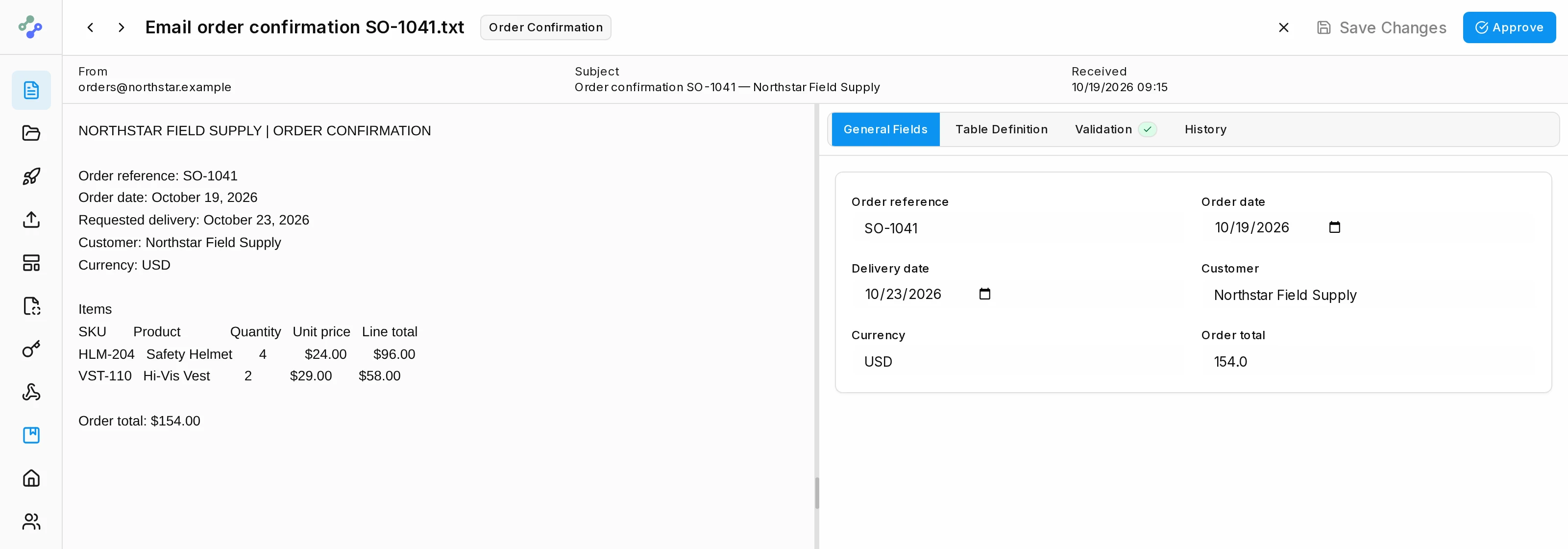
The SO-1041 source email and result panel show the same reference and requested delivery date, alongside two item rows.
The SO-1044 sample PDF is a separate source. It contains three CAB-030 Outdoor Cable Reels at $18 each and two EXT-095 Extension Kits at $9.50 each, for a $73 total and an October 30 requested delivery date. Its result displays the two repeating item rows.
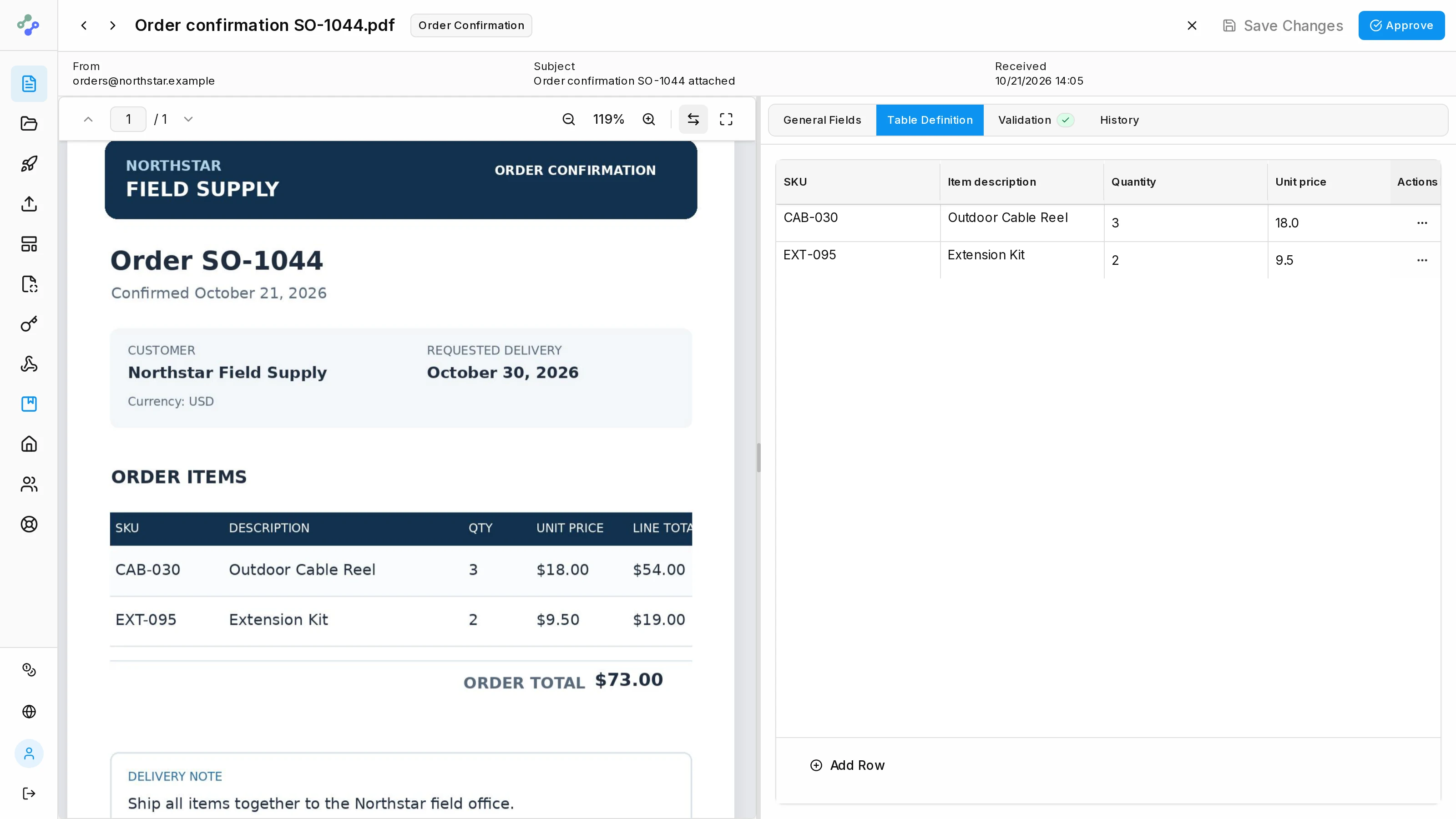
The SO-1044 confirmation PDF and its result show two item rows side by side.
If your review finds an incorrect value, correct it in the result and save the change before exporting. Compare order values with your own customer and product records when those checks matter to your process.
Step 3: Select records and download an Excel layout
Select the order results needed for the report, then choose Excel or Excel (one tab) from the export menu. The sample selection contains four results, including SO-1044 from the attached PDF.
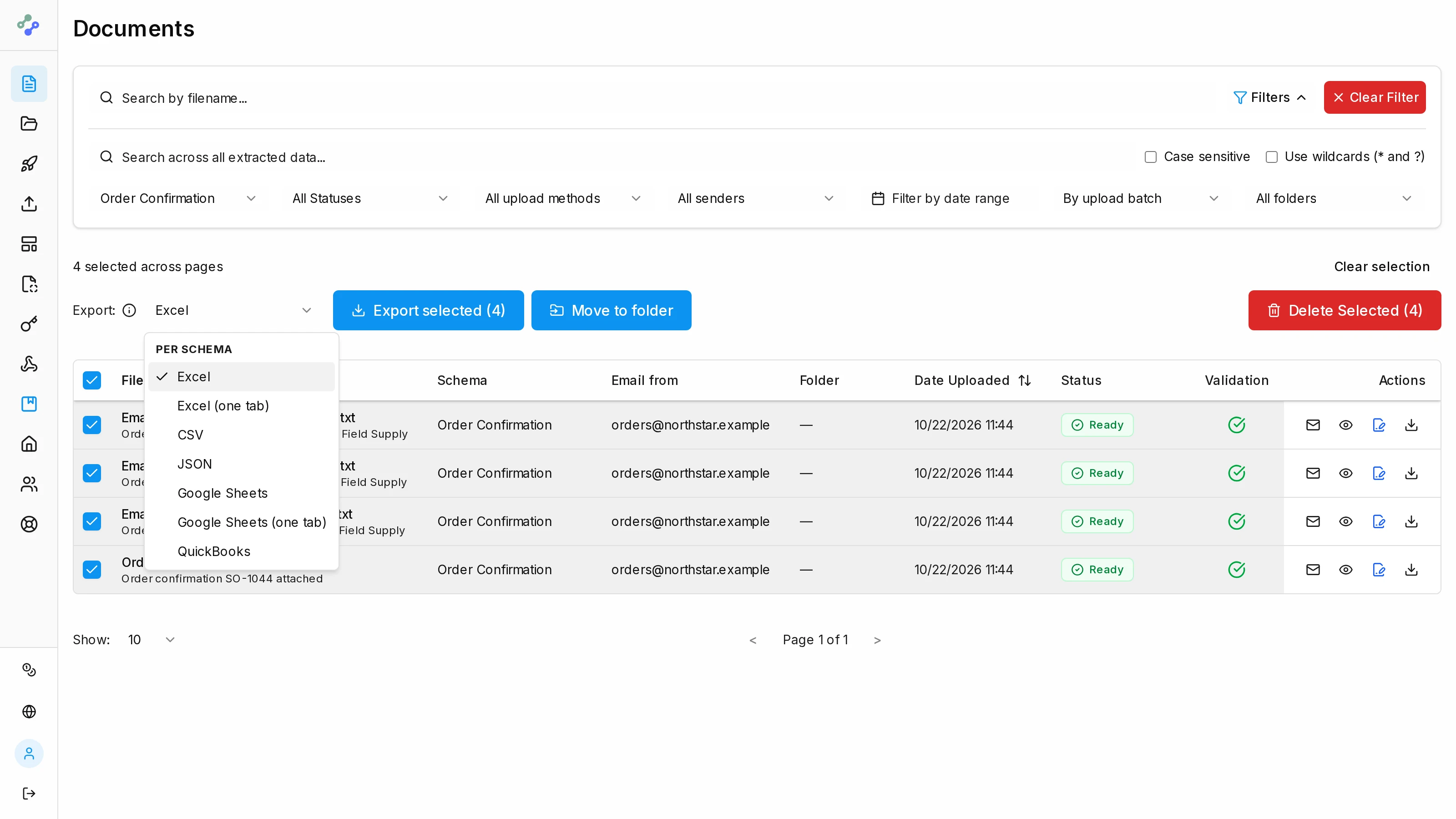
Four results are selected, and the export menu shows the Excel layout choices.
Standard Excel separates order summaries and item rows into Summary_list and Items_list, with a Validation tab. The one-tab layout places general order fields beside each item row in Data, plus a Validation tab. Choose standard Excel when a separate order summary is useful; choose one tab when someone needs to filter item rows and keep their order context visible. In a one-tab report, order-level values repeat beside each item, so use the summary sheet or distinct order references when totaling orders.
The Excel, CSV, and JSON export guide describes the available layouts. An XLSX download is a snapshot of the selected saved results. It will not change when a new email arrives; teams that need future results delivered to a spreadsheet can follow the automatic email-to-Google-Sheets tutorial.
Use the workbook to answer a reporting question
For example, filter the one-tab item data to Quantity > 3. In this sample, three of six item rows match:
| Order reference | Delivery date | SKU | Item | Quantity |
|---|---|---|---|---|
| SO-1043 | Oct 29, 2026 | LED-250 | Rechargeable Site Lamp | 5 |
| SO-1042 | Oct 27, 2026 | TRF-010 | Traffic Cone | 12 |
| SO-1041 | Oct 23, 2026 | HLM-204 | Safety Helmet | 4 |
That is 3 of 6 item rows, or half of the sample's line items. The filter keeps delivery date and order reference with each match, which helps a coordinator trace a line back to its confirmation.
Review and troubleshoot before sharing
- An expected confirmation is missing: Check the date, sender, folder, and document-type filters in the results list. Confirm that the email or attachment has finished processing before creating a report.
- The body and attachment look like duplicate orders: Compare their references and source documents. They are separate results; the export does not decide whether one amends or duplicates the other.
- A quantity or total looks wrong: Reopen the source and compare the extracted fields and item rows. Check prices or customer details against your own records when needed.
- A colleague needs a different layout: Download the saved results again using the other Excel layout. The existing file is not updated in place.
Frequently asked questions
Will the Excel workbook update when another order email arrives?
No. Each download contains the saved results selected at export time. Start another export when you need a later or different report. Use automatic Google Sheets delivery when new results should go to a configured spreadsheet destination.
Does an email and its attached PDF become one order record?
No. Message bodies and attachments are processed separately. Review their references and context to determine whether they are separate orders or two sources about the same order.
Does downloading another workbook process the emails again?
No. Export another layout from saved results; downloading the file does not require reprocessing those sources.
Which Excel layout should I choose?
Use standard Excel when it helps to keep order summaries and item rows on separate tabs. Choose one tab when each line item should carry its order reference and other general fields in the same row. See the export layout guide for more details.
Turn your next order confirmation into useful spreadsheet data
Set up the fields your team needs, review the captured order details, and download an Excel workbook for your next report.
Extract Order Details from an EmailMichal Raczy
Michal is the founder of Suparse.com. He has over 15 years of experience in delivering projects in data analysis, automation, and document processing. Michal solves complex automation and AI implementation challenges for both SMEs and large corporations, with a particular focus on document processing. Contact at michal@suparse.com.