
Turn email attachments into records your team can use
Forward document emails to Suparse instead of saving every attachment and uploading it again. Capture fields and tables from supported PDFs, scans, and document photos. Each file is a separate input, and a bundled PDF can contain several documents with individual results. Keep covering messages out of processing when the attachments contain the records you need.
- Capture fields and tables from attachments
- Separate documents inside combined PDFs
- Keep covering messages out of processing
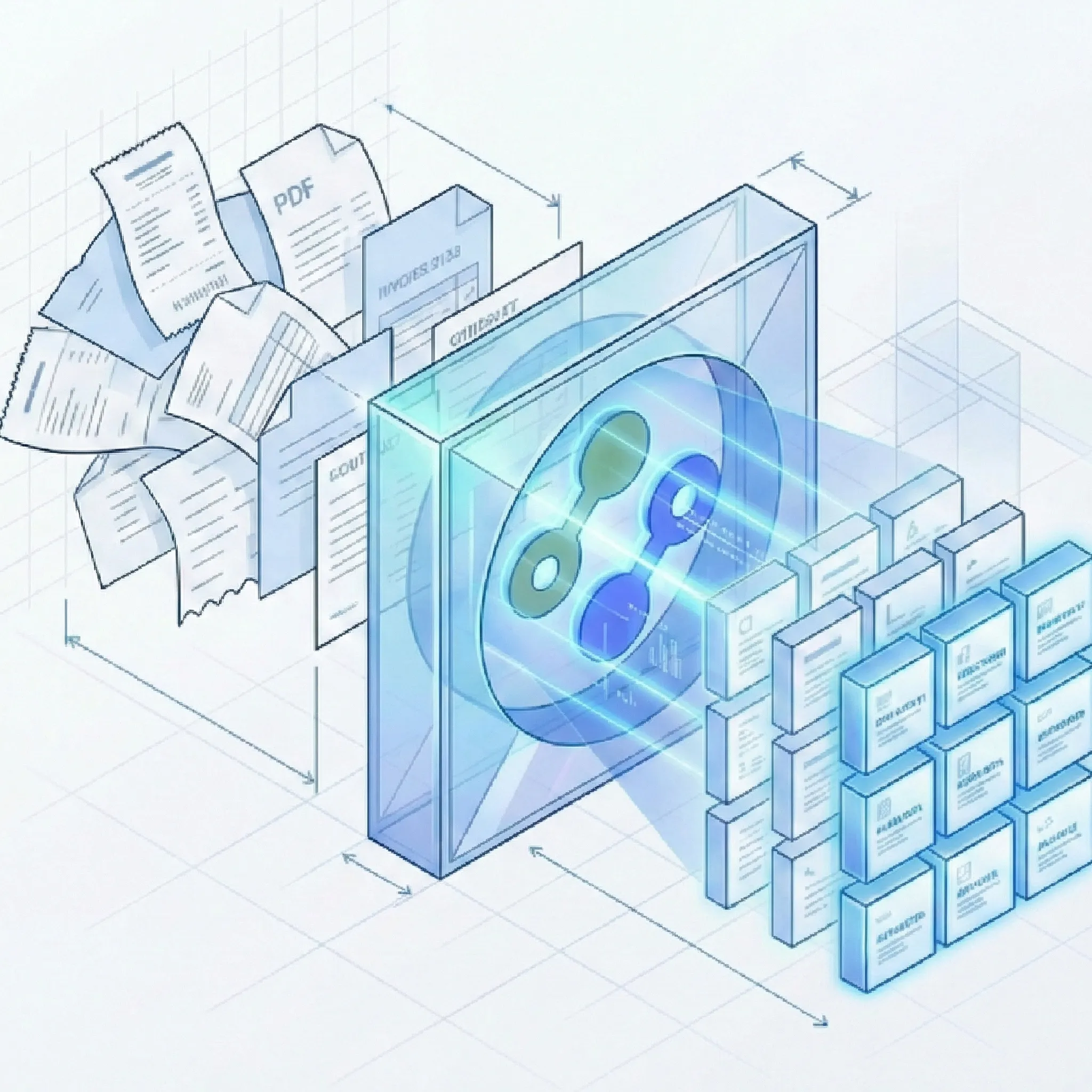
Less file handling between your inbox and your work
Fit attachment processing to the documents your team receives
Handle recurring paperwork and mixed attachments, then put the extracted data where it is useful.
Make recurring attachments easier to handle
- Keep using your mailbox: Forward relevant messages to Suparse from your existing email account. See the Gmail forwarding guide or Outlook and Microsoft 365 guide.
- Capture consistent details: Apply saved fields to recurring work orders, invoices, or other documents, so new results follow the information your team expects.
- Choose the fields you need: Capture work-order IDs, sites, completion dates, or other details with custom document parsing.
Handle different documents together
- Send the attachments together: Email Autopilot identifies document types and uses matching fields, so different attachments from one message can each produce a relevant result.
- Skip splitting PDFs by hand: A PDF with three work orders can become three document results, while an attached completion-form photo has its own result. Explore document splitting.
- Work with PDFs and document images: Process digitally created PDFs, scanned paperwork, and supported phone photos through the same email workflow.
Put the captured data to work
- Keep a shared register current: Add new results for a document type to its spreadsheet with the email-to-Google-Sheets workflow.
- Connect your own application: Use document webhooks with a custom integration to pass completed results into your workflow and take the actions your team defines.
- Share a file when needed: Download extracted data as XLSX, CSV, or JSON for a one-time review or handoff. Explore document data exports.
One email, two attachments, four document results
A field-services coordinator sends a bundled work-order PDF and a completion-form photo. Process attachments only when the body is just a covering note.
Questions about parsing email attachments
Which attachment formats can Suparse process?
Suparse supports PDF, JPEG/JPG, PNG, HEIC, HEIF, TIFF, and WebP attachments, including scanned PDFs and document photos. Each supported file can be up to 20 MB.
Can one email produce separate results for several documents?
Yes. Each attachment is processed as its own input, and a combined PDF can be separated into individual documents. For example, a PDF containing three work orders and an attached photo of a completion form can produce four document results using matching document types.
Can Suparse process the email body with its attachments?
Yes. You can process attachments, the body, or both. The body and each file are separate inputs rather than merged into one record. If the message only says 'see attached,' processing attachments alone keeps the covering text out of the results. See the email parser overview for the broader workflow.
What if the attachments contain different document types?
Email Autopilot can identify the documents and match them to types available in your workspace, with shared Suparse types available as an option. Each matching type determines which fields and tables are captured. Documents without a suitable match go to review; Email Autopilot does not create new document types automatically.
How do I send attachment results to a spreadsheet?
Use Email to Google Sheets for the intake-to-row workflow. The automatic Sheets export guide covers connection setup, layouts, delivery timing, and historical results.
Can we use this for supplier invoice attachments?
Yes. Suparse can capture invoice fields and line items from supported attachments. Explore the invoice email parser for supplier invoices, review, and the invoice-specific workflow.
Put your next email attachment to work
Create your Suparse account and start with a PDF, scan, or document photo your team receives regularly. Capture the details you need and reduce the file handling and data entry that follows every email.
Sign Up to Process Email Attachments