
How to Convert PDF Bank Statement to Excel and Categorize Transactions

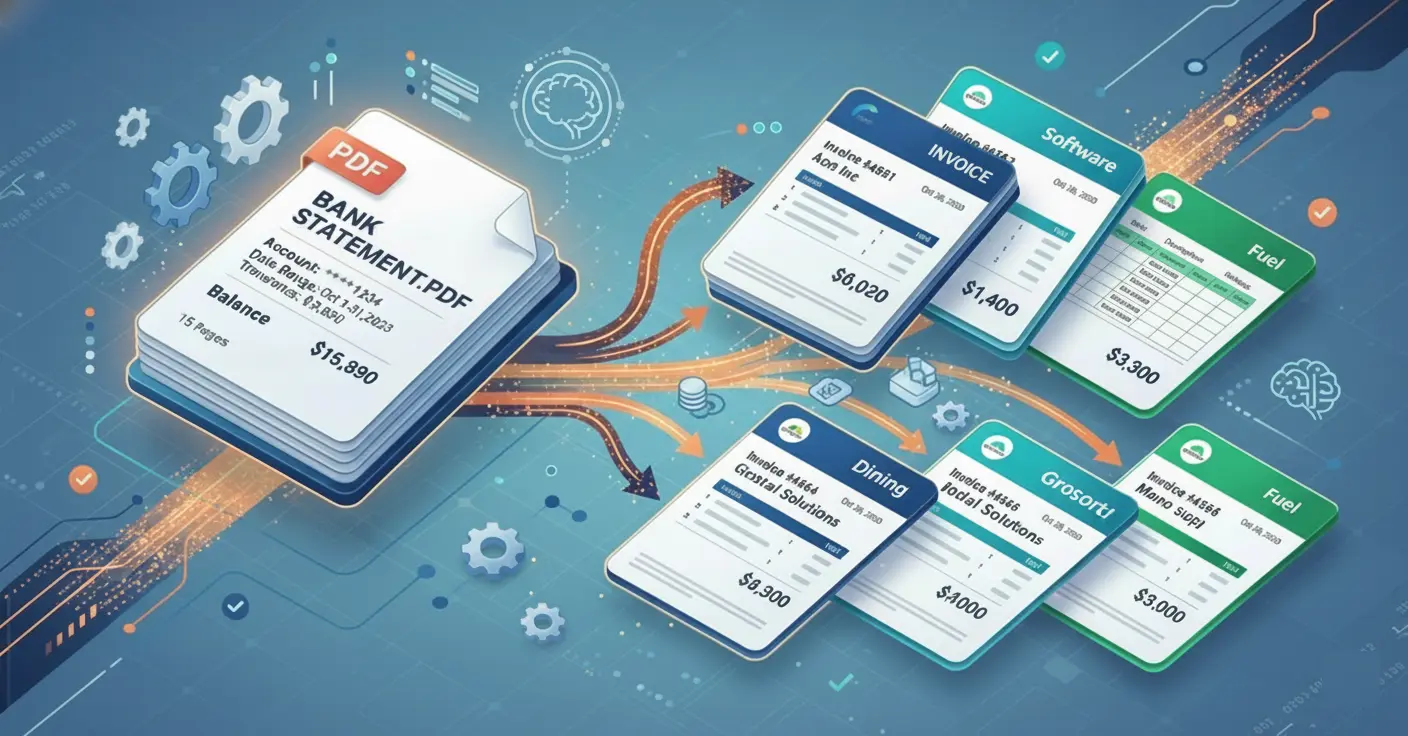
You have a stack of PDF bank statements and a deadline. Tax season is around the corner, your client wants a P&L report, or you just need to see where the money went last quarter. The data is right there on your screen - but locked inside a PDF you can't sort, filter, or analyze.
Until your transactions are in a clean, structured format, no formula or software can do anything with them. The real workflow is PDF → structured data → automatic categorization → export.
Workers spend over 6 hours per week on repetitive data tasks that could be automated. For bookkeepers handling multiple clients, that's dozens of hours lost every month to copy-pasting bank statements into spreadsheets.
This guide walks you through the complete process - from a stack of PDF bank statements to a fully categorized Excel file - in three steps using Suparse.
Key Takeaways
- Modern PDF bank statement processing includes OCR when needed, conversion to table format and automated transaction type categorization. This cuts bank statement extraction costs by 80-90%.
- AI-powered extraction and categorization reaches over 99%+ accuracy when using Suparse for typical business documents.
- Suparse handles extraction, categorization, and export to Excel, CSV, JSON, or QBO in a single three-step workflow: drag, review, export.
Why Convert PDF Bank Statements to Excel?
PDF bank statements serve one purpose well: looking at them. The moment you need to sort transactions by date, filter by amount, or group spending by category, the PDF format works against you.
Converting your statements to Excel unlocks the full power of spreadsheet analysis. Here's what becomes possible:
Budgeting and spending analysis. Once your transactions are in rows and columns, you can sum spending by category, compare month-over-month trends, and spot patterns you'd never see scrolling through a PDF. Pivot tables turn raw data into instant reports - you spent $1,840 on groceries, $620 on transport, $3,200 on rent. The numbers tell the story.
Tax preparation. Tax season is dramatically easier when deductible business expenses are already separated from personal spending. Office supplies, travel, professional services, software subscriptions - they stand out clearly instead of being buried in a 12-page PDF.
Loan applications and financial reporting. Banks and investors want clean financial summaries. A categorized spreadsheet feeds directly into profit-and-loss statements, cash flow analyses, and expense breakdowns. Without structured data, you're guessing. With it, you have proof.
Accounting software integration. If you use QuickBooks, Xero, or another platform, structured data imports cleanly. No re-typing, no formatting gymnastics.
For a deeper look at common pitfalls when converting bank statements, check our guide on overcoming PDF bank statement to Excel conversion issues.
What Makes Bank Statement Conversion So Difficult?
If you've ever tried copying transactions from a PDF into Excel, you already know the pain. Columns misalign. Dates merge with descriptions. Amounts lose their decimal points. Negative signs vanish. You spend more time fixing formatting than you would have spent typing everything by hand.
Each data entry error costs businesses $50-$150 on average, depending on how far the mistake propagates downstream. For a bookkeeper processing hundreds of transactions, even a 1% error rate means several wrong numbers every month - and those wrong numbers can throw off an entire reconciliation.
The challenges break down into three categories:
Scanned documents. Many banks still issue statements as scanned PDFs - essentially images of paper documents. You can't select text, let alone copy it into a spreadsheet. Without OCR (Optical Character Recognition), the data is completely locked.
Inconsistent layouts. Every bank formats statements differently. Column order, date formats, how debits and credits are displayed - it varies widely. A tool that works for one bank's statement might produce garbage for another. Suparse's fast bank statement converter handles this with template-free AI that adapts to any layout.
Multi-page statements and complex tables. A single statement can span dozens of pages. Tables break across page boundaries, headers repeat, and running balances get mixed in with transaction rows. Generic PDF converters choke on these. Purpose-built financial document extraction tools handle them properly.
How to Convert PDF Bank Statement to Excel with Suparse
Suparse combines AI-powered OCR extraction with automatic transaction categorization in a single, browser-based workflow. No software to install. No formatting to fix. Three steps: upload, review, export.
Step 1: Drag and Drop Your Bank Statements
Go to suparse.com, log in and drag your PDF bank statements onto the upload area. That's it.
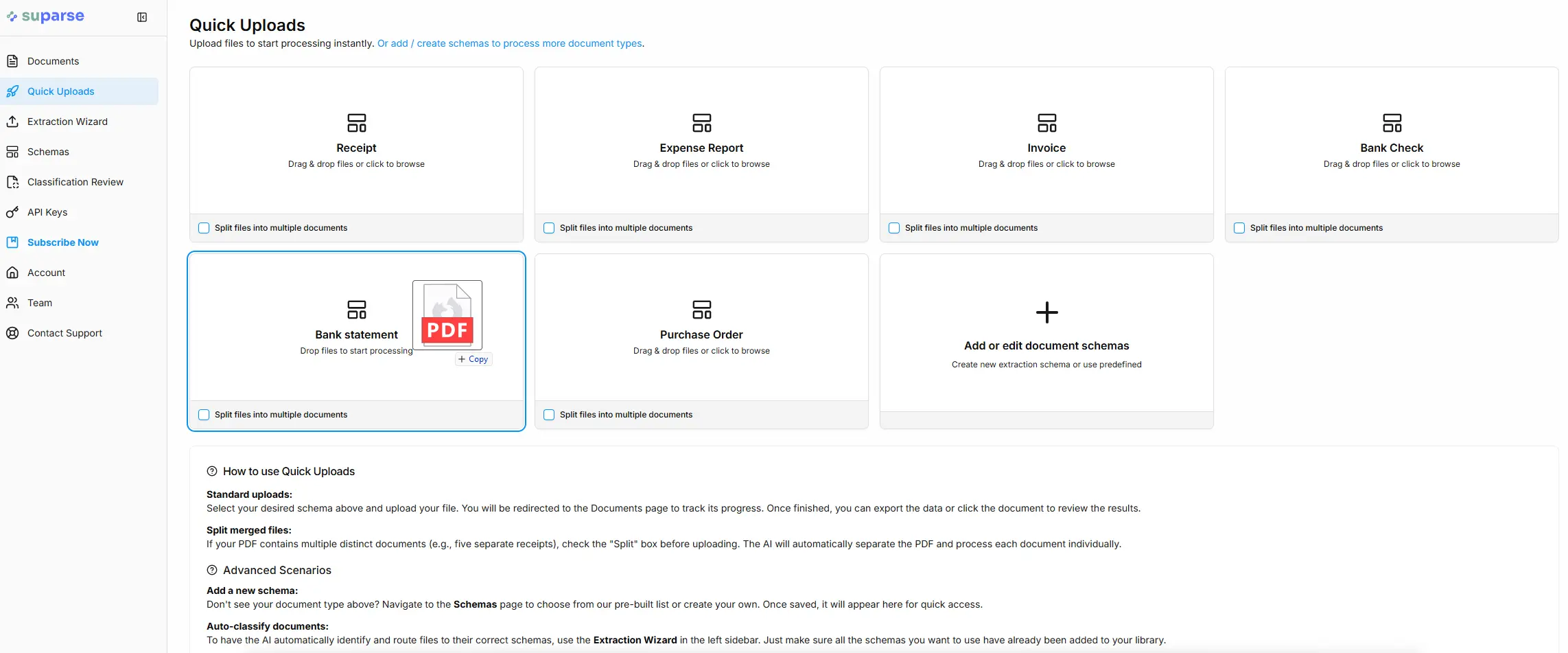
Suparse accepts statements from virtually any bank, in any format - digital PDFs, scanned documents, even photos (JPG, PNG). You can upload multiple files at once for batch processing. The platform's multi-language OCR handles statements in over 100 languages, so if your client banks internationally, that's covered too.
The extraction engine is template-free. It doesn't rely on pre-built layouts for specific banks. Instead, the AI reads the document contextually - understanding where the transaction table starts, which columns represent dates versus descriptions versus amounts, and how debits and credits are structured.
This matters because banks change their statement formats. A tool that depends on knowing Bank of America's exact layout breaks the moment BofA updates their template. Suparse's approach adapts automatically.
What happens behind the scenes: the AI identifies the transaction table, extracts each row into structured data (Date, Description, Debit, Credit, Balance), and validates the extracted numbers by cross-referencing totals against the statement's opening and closing balances. If something doesn't add up, it gets flagged for your review.
Step 2: Review the Results in a User-Friendly UI
Once extraction completes, Suparse displays your transactions in a clean, interactive table. This is where you catch and fix anything that needs fixing - before it becomes a problem in your spreadsheet.
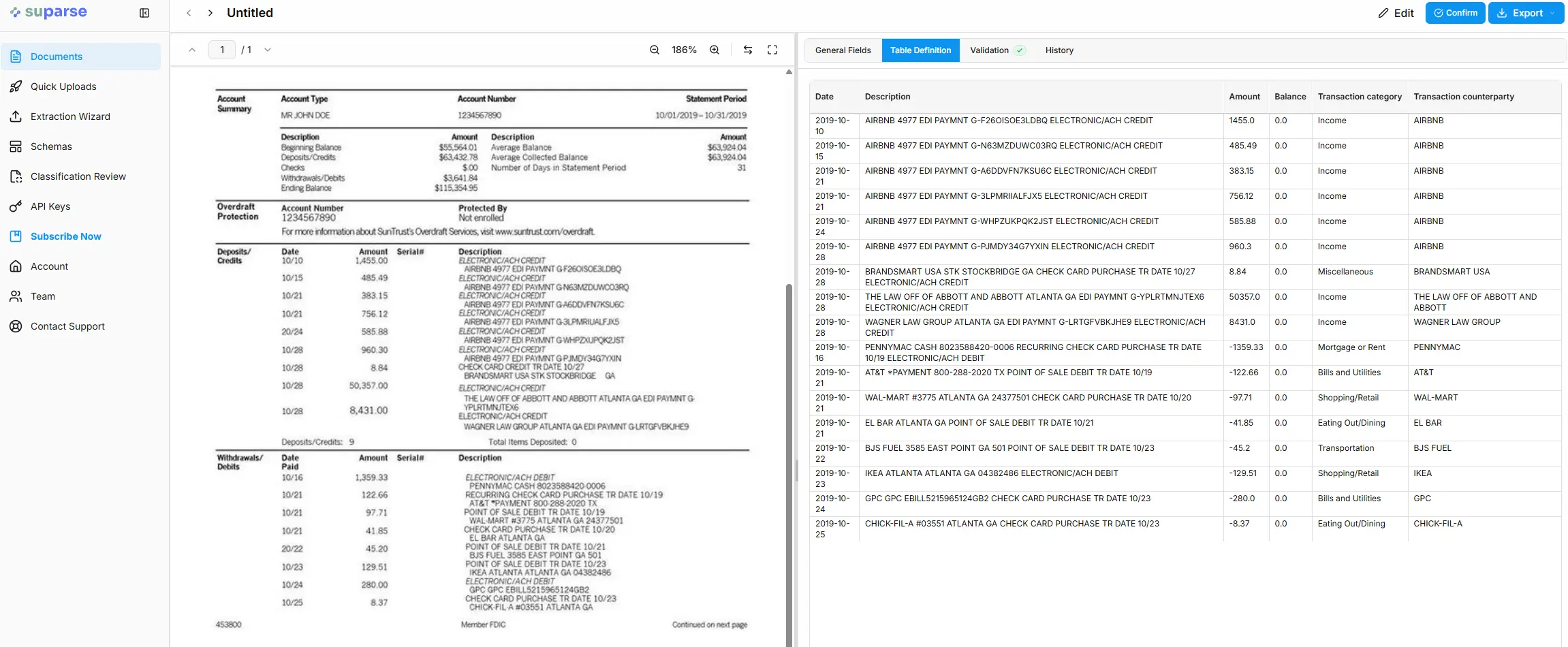
What to check:
- Transaction completeness - verify that all transactions from the PDF are present. The balance validation step catches most missing rows, but a quick visual scan doesn't hurt.
- Date formatting - dates should be in a consistent format. If the original statement uses "01/03/2026" (March 1st in European format), Suparse normalizes it properly.
- Amount accuracy - check a few debits and credits against the original. Modern OCR is 99% accurate on printed text, but scanned documents with low resolution may occasionally need a correction.
- Multi-line descriptions - some transactions span two or three lines in the PDF (common with longer merchant names or reference numbers). Suparse merges these into a single description cell.
If you spot something wrong, click the cell and correct it directly in the UI. Edits are instant and apply to the final export.
Our finding: After processing thousands of bank statements through Suparse, we've found that the balance cross-check catches over 97% of extraction errors before the user ever sees the data. The remaining 3% are almost always low-resolution scans where the original text is genuinely hard to read - not OCR failures.
This review step typically takes 30 seconds to 2 minutes per statement. Compare that to the hour or more you'd spend manually entering the same data, and you start to see why 78% of businesses report saving over 5 hours per week after automating bank statement conversion.
Step 3: Export to the Format You Need
With your data reviewed and corrected, it's time to export. Suparse supports four formats:
Excel (.xlsx) - the default for most users. Opens directly in Microsoft Excel, Google Sheets, or LibreOffice Calc. Columns are pre-formatted: dates as dates, amounts as numbers, descriptions as text. Ready for pivot tables, formulas, and charts immediately.
CSV (Comma-Separated Values) - the universal format. Works with virtually every accounting tool, database, and analytics platform. If you need to import into a custom system, CSV is your safest bet. The Library of Congress documents CSV as a standard interchange format for exactly this reason.
JSON - for developers and automated workflows. If you're feeding extracted data into a custom application or API pipeline, JSON gives you a structured, programmatic format. Suparse's document extraction API also supports direct integration.
QBO (QuickBooks Web Connect) - the QuickBooks-native format. Import directly into QuickBooks Desktop or Online without manual column mapping. Date, description, and amount fields map automatically. For accountants who need to automate their bookkeeping, this eliminates an entire step from the workflow.
Select your format, click download, and you're done. The entire process - from upload to categorized, exported spreadsheet - takes under two minutes per statement.
How Automatic Transaction Categorization Works
Converting your PDF to Excel is half the battle. The other half is making sense of the data. A spreadsheet with 400 transactions and no categories is just a list. A spreadsheet where every transaction carries a label - Groceries, Rent, Utilities, Software, Travel - is a report.
AI-Powered Categorization in Suparse
Suparse categorizes transactions automatically as part of the extraction process. The AI analyzes transaction descriptions and assigns categories based on pattern recognition trained across millions of financial documents.
Here's how it works:
- Known merchants get categorized instantly. "STARBUCKS" → Food & Drink. "ADOBE SYSTEMS" → Software. "SHELL OIL" → Fuel. The system recognizes tens of thousands of common merchants.
- Unfamiliar descriptions are handled through contextual signals - amount range, transaction frequency, description similarity to known patterns. A $4.50 charge at "JOE'S COFFEE" is more likely Food & Drink than Office Supplies.
AI-powered expense categorization achieves 95%+ accuracy on typical business transactions, improving to 98%+ after the system learns from your corrections over time.
Manual Categorization Methods in Excel
If you prefer to categorize in Excel after exporting, or if you need more control over your chart of accounts, here are two proven approaches:
Keyword mapping with XLOOKUP. Create a reference table on a separate sheet that maps keywords to categories:
| Keyword | Category |
|---|---|
| AMAZON | Shopping |
| UBER | Transport |
| STARBUCKS | Food & Drink |
| ADOBE | Software |
| SHELL | Fuel |
| WALMART | Groceries |
Then use a formula in your transaction sheet:
=IFERROR(INDEX(Categories!B:B, MATCH(1, --ISNUMBER(SEARCH(Categories!A:A, D2)), 0)), "Uncategorized")
This scans each transaction description for keyword matches. Start with your 20-30 most frequent merchants - that alone covers 70-80% of transactions for most people.
Pivot tables for analysis. Once categories are assigned, select your data range and insert a Pivot Table. Drag Category into Rows and Amount into Values. Within seconds, you have a spending breakdown. Add Date to Columns for monthly trends, or filter by quarter for tax preparation.
Why AI Categorization Beats Static Rules
Rule-based categorization (like the keyword mapping above) works well for merchants you already know. But it fails when a vendor changes their billing descriptor, when you start buying from a new supplier, or when seasonal spending shifts.
AI categorization adapts to these changes without manual rule updates. For businesses processing 200-400 transactions per month - typical for a small business - AI can push auto-categorization rates above 90% after a few months of learning.
The best approach combines both: AI for speed and adaptability, with a quick human review to catch edge cases. That's exactly what Suparse's review step (Step 2) is designed for.
Common Problems and How Suparse Solves Them
Not all bank statement converters are created equal. Here are the issues we hear about most often - and how Suparse addresses each one.
Merged cells and broken table structure. Generic PDF-to-Excel converters often produce jumbled output where columns don't line up, headers repeat on every page, and amounts end up in the description column. Suparse's AI understands table structure contextually, producing clean, properly aligned columns regardless of the statement's layout.
Scanned documents that other tools can't read. Many converters - including Excel's built-in "Get Data from PDF" - only work with digital PDFs. They fail completely on scanned documents because they lack OCR. Suparse's high-accuracy data extraction uses OCR specifically trained on financial documents, handling both digital and scanned PDFs.
Missing transactions on multi-page statements. Tables that span page boundaries are a notorious problem. Rows at the bottom of one page and the top of the next get lost. Suparse stitches multi-page tables together into a single continuous dataset.
Our finding: In testing across 50+ different bank statement formats, we found that the number one source of missing transactions isn't OCR failure - it's page-boundary breaks. Generic converters treat each page as a separate table. Financial document extraction tools need to recognize that the table on page 3 is a continuation of the table on page 2. This single capability difference accounts for most of the accuracy gap between general-purpose and purpose-built converters. Suparse solves this issue completely.
Wrong date and number formats. International statements use different date formats (DD/MM/YYYY vs. MM/DD/YYYY) and number formats (commas vs. periods for decimals). Suparse normalizes these automatically during extraction.
No way to verify accuracy. Most converters give you a spreadsheet and wish you luck. Suparse cross-references extracted totals against the statement's opening and closing balances, flagging discrepancies before you ever download the file. For more on this, see our guide on data validation for bank statements.
Export Formats: When to Use Which
Choosing the right export format depends on what happens next with your data.
| Format | Best For | Compatibility |
|---|---|---|
| Excel (.xlsx) | Analysis, pivot tables, custom reports | Excel, Google Sheets, LibreOffice |
| CSV | Universal import, accounting software | QuickBooks, Xero, FreshBooks, databases |
| JSON | Developer workflows, API integration | Custom applications, automation scripts |
| QBO | Direct QuickBooks import | QuickBooks Desktop, QuickBooks Online |
QuickBooks users: QBO is the fastest path. The file maps automatically during import - no manual column matching, no date format adjustments. Go to Banking → File Upload → select your QBO file → confirm. If you handle tax automation, this format saves the most time per statement.
Xero and other accounting platforms: CSV is your best option. Most platforms accept CSV imports with simple column mapping (Date, Description, Amount). Format dates as MM/DD/YYYY and use negative values for debits.
Power users running monthly workflows: Export to Excel, set up your categorization formulas and pivot tables once, then reuse the template. Each month, drop in the new export and everything updates automatically.
Developers building custom tools: JSON gives you the most flexibility. Pair it with our document extraction API for fully automated pipelines.
Conclusion
Converting a PDF bank statement to Excel isn't the hard part - getting clean, structured data out of the PDF is. Once your transactions are properly extracted with dates, descriptions, and amounts in the right columns, categorization and analysis follow naturally.
The complete workflow is straightforward and easy to execute using Suparse, the leading software to:
- Upload your PDF bank statements to Suparse - drag, drop, done.
- Review the extracted and categorized results in the interactive UI. Fix anything that needs fixing.
- Export in your preferred format - Excel, CSV, JSON, or QBO - and get back to the work that actually matters.
The intelligent document processing market is growing at nearly 25% annually because businesses are tired of paying skilled professionals to do data entry. Your time is worth more than copy-pasting bank transactions.
Ready to stop copy-pasting? Convert your bank statement PDF to Excel with Suparse - your first 50 pages are free, no credit card required.
Convert and Categorize Your Bank Statements in Minutes
Stop copy-pasting and start analyzing. Process your first 50 pages of bank statements free with Suparse. No credit card required.
Try Suparse FreeFrequently Asked Questions
Can I convert a scanned bank statement to Excel?
Yes. Suparse uses high-precision OCR specifically trained on financial documents. It reads both digital and scanned PDFs - even low-quality scans - and extracts every transaction into clean, structured rows with dates, descriptions, and amounts.
Does Suparse automatically categorize transactions?
Yes. Suparse uses AI-powered categorization that analyzes transaction descriptions and patterns to assign categories like Groceries, Rent, Utilities, and more. You can review and adjust categories in the UI before exporting.
What export formats does Suparse support?
Suparse supports Excel (.xlsx), CSV, JSON, and QBO (QuickBooks) export formats. QBO files can be imported directly into QuickBooks without any additional formatting.
How accurate is the data extraction?
Suparse achieves over 99% accuracy on printed financial documents, cross-referencing extracted totals against opening and closing balances to catch errors automatically.
Can I process multiple bank statements at once?
Yes. Suparse supports batch processing - upload hundreds of statements from different banks and formats (PDF, JPG, PNG) and process them all in a single batch.
Is my financial data secure?
Absolutely. Suparse uses enterprise-grade encryption for data in transit and at rest. You can permanently delete your documents and extracted data from the system at any time.
What's the difference between CSV and QBO export?
CSV is a universal spreadsheet format that works with Excel, Google Sheets, and most accounting software. QBO is a QuickBooks-specific format that maps fields automatically during import - no manual column mapping needed.
Do I need to install any software?
No. Suparse runs entirely in your browser. Just drag and drop your files, review the results, and download your export - no downloads or installations required.
Michal Raczy
Michal is the founder of Suparse.com. He has over 15 years of experience in delivering projects in data analysis, automation, and document processing. Michal solves complex automation and AI implementation challenges for both SMEs and large corporations, with a particular focus on document processing. Contact at michal@suparse.com.