
Turn selected Gmail messages into structured data
Supplier invoices can arrive in Gmail with a PDF attached, but the team still needs that information in a record it can review and follow up. Suparse turns forwarded Gmail messages and supported attachments into structured results using the extraction setup for the document type your team chose. A Gmail filter can keep a supplier stream focused so unrelated mail does not enter the Suparse workflow. When automatic email-based Sheets delivery is configured, the result can reach a Google Sheet with sender, subject, and received time alongside the extracted data.
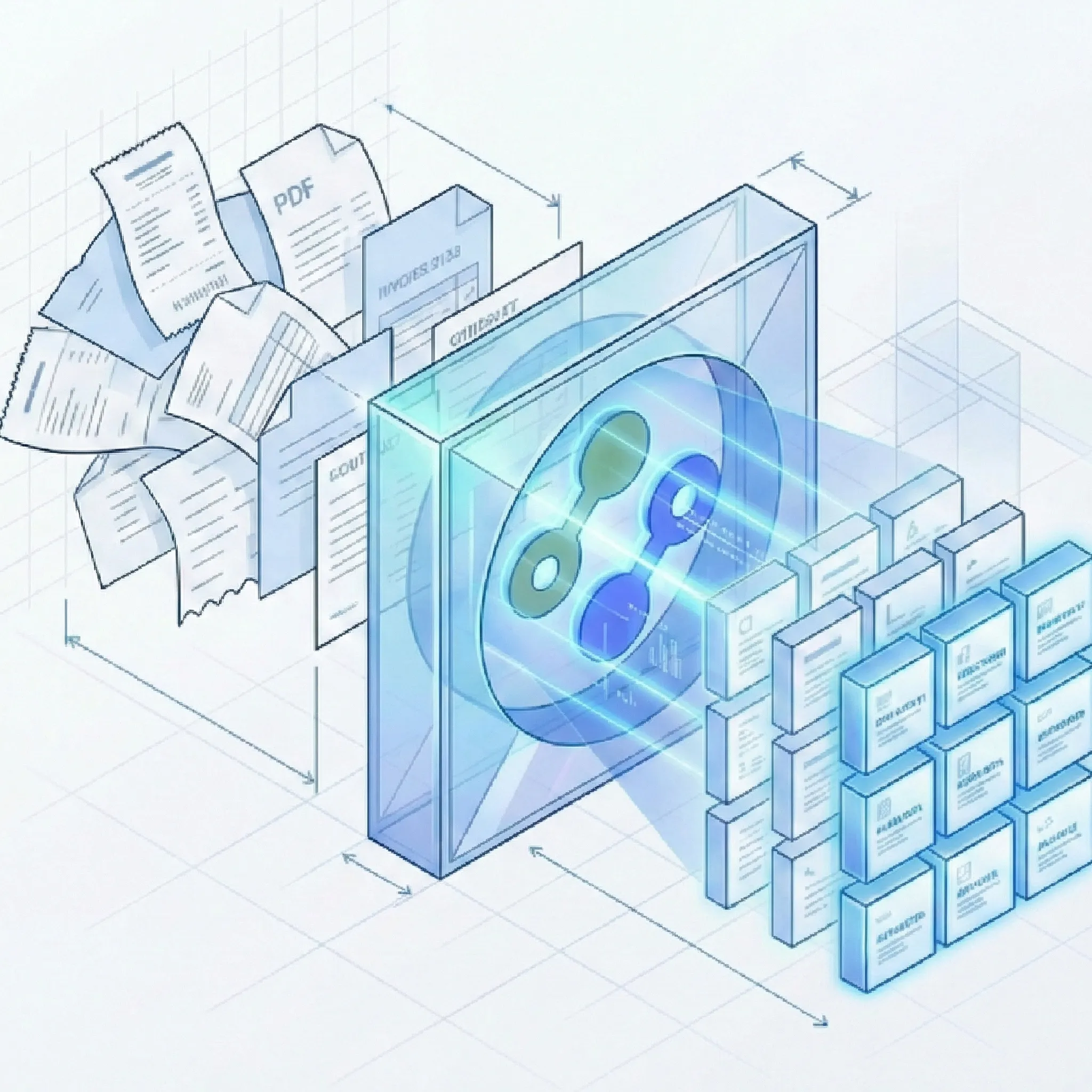
Let a recurring email start a useful record
Illustrative example: A Gmail message from billing@northstar-supplies.example arrives with the subject “September invoice” and an attachment named invoice-2847.pdf. A filter for that supplier can forward future matching messages to the Suparse receiving address for the invoice document type. Suparse processes the attachment using the extraction fields configured for that type; when automatic delivery for email uploads is set up, a result can be added to the Google Sheet Suparse creates in the connected account's Drive. The row includes the email sender, received time, and subject alongside the extracted data, giving an accounts payable teammate a record to follow up from without rebuilding it from the message.
Teams can review email-derived results in Suparse and keep them in an ongoing register when a spreadsheet fits the next step. The email-to-Google-Sheets workflow shows how incoming email can become spreadsheet rows, and automatic Google Sheets delivery explains the destination and which results can be sent there.
A message can contribute its body, supported attachments, or both, depending on the receiving address settings. When the file is the important source, see the email attachment parser; the email parser overview covers the wider email intake workflow.
Set the route, then test the result
Google confirmation and Gmail forwarding do different jobs. Confirming the Suparse address makes it an eligible destination; Gmail still needs a saved filter or an all-new-mail forwarding setting before future messages are sent.
- Choose the receiving address for the document type your team wants to process.HITL
- Set whether that address processes the email body, supported attachments, or both.HITL
- Suparse checks Google's confirmation message and surfaces a link or code; use it in Gmail, then return to Suparse to continue.HITL
- Create a Gmail filter and choose Forward it to the Suparse address for future messages that match.HITL
- If a broader stream is useful, enable Gmail's general forwarding setting for future messages.HITL
- Send a new message that matches the route, then check Latest email for its status and resulting document count.HITL
- When automatic email delivery is configured, the resulting data can also be added to its Google Sheet.
Keep the workflow focused on future mail
A Gmail filter can select a recurring sender or subject and forward only messages that match, leaving unrelated mail in Gmail. A team can also use Gmail's general forwarding setting for future messages; Google excludes spam from automatic forwarding. In either case, Suparse receives future messages Gmail routes to its address; it does not synchronize the Gmail mailbox, scan or import historical mail, or operate as a Gmail add-on.
Google's Gmail forwarding instructions explain how to add and verify a forwarding address, and its filter instructions cover rules for selected messages. Google Workspace administrators can turn off users' automatic forwarding; if the forwarding option is unavailable, check with the administrator and review Google's Workspace guidance.
For a broader view of how intake connects with the rest of a document workflow, explore Suparse's key features.
Gmail email parser questions
Does confirming the Suparse address turn on Gmail forwarding?
No. The Google confirmation authorizes the address as a forwarding destination. You still need to save a Gmail filter for selected messages or separately enable Gmail's general forwarding setting for future messages, then send a new test message and check Latest email in Suparse.
Can I send only selected Gmail messages to Suparse?
Yes. Create a Gmail filter using the criteria that identify the messages you want, such as a supplier sender or subject, and choose Forward it to the Suparse receiving address. Only future messages that match that filter enter this workflow; unrelated mail stays in Gmail.
Does Suparse sync my Gmail mailbox or import older messages?
No. Suparse processes future messages that Gmail forwards to the receiving address. It does not connect to or synchronize the mailbox, import its history, or provide a Gmail add-on.
Can Gmail messages become Google Sheets rows?
Yes, when automatic delivery for email uploads is configured for the document type. Suparse creates a new spreadsheet in the connected Google account's Drive, and email rows include sender, received time, and subject as source context.
Start with the Gmail messages your team already processes
Choose a Suparse receiving address, confirm it with Google, and test the first matching message before relying on the workflow.
Create your Suparse account