
AI email parser for emails and attachments
Forward emails from Gmail, Outlook, or your shared mailbox. Suparse extracts the fields you need from email text, PDFs, scans, and images. Review the results, export to Excel or Google Sheets, or send them to your system.
- AI extraction without parsing rules or regex
- Excel, Google Sheets, CSV, JSON, and webhooks
- 50 free pages included
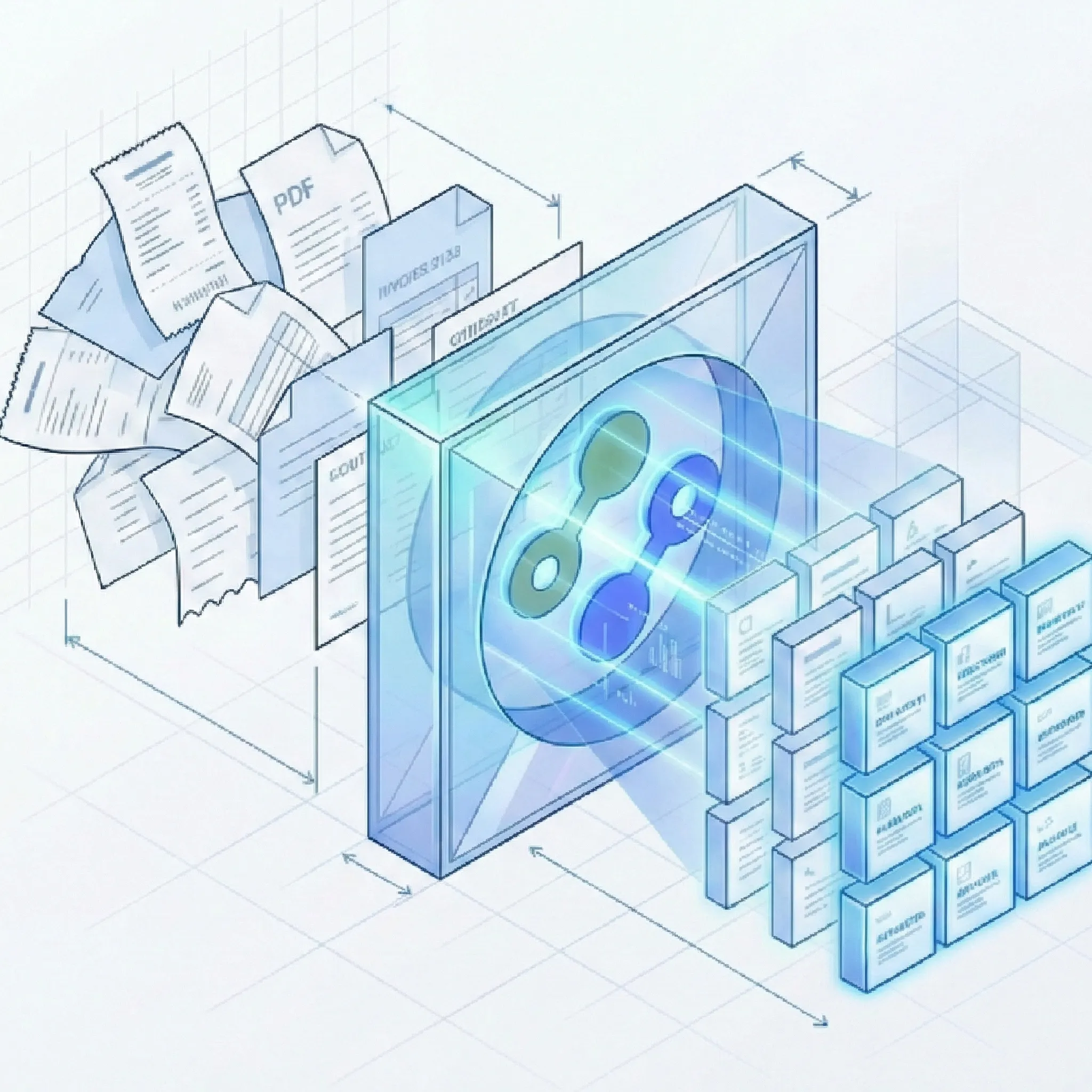
From incoming email to data you can use
Choose your data, forward an email, and get structured results for your next step.
1. Choose the data you need
- Define fields such as customer name, invoice number, order items, or delivery date. Save them as a reusable schema: the list of data Suparse should extract.
2. Forward your emails
- Send messages to your Suparse address, or automatically forward matching emails from Gmail, Outlook, or your shared mailbox using your email service's forwarding rules.
3. Get structured results
- Review extracted fields in Suparse, export selected results to a spreadsheet, or deliver completed results automatically through a configured webhook.
Extract data from email bodies, attachments, or both
Capture the information your team needs, wherever it appears in an incoming email.
Email body parsing
- Extract names, contact details, order quantities, and requested dates written directly in a message. Turn customer requests into fields you can sort, filter, and share.
Email attachment parsing
- Parse PDF attachments, scanned invoices, and document photos received by email. Extract totals, reference numbers, and line items without downloading and uploading each file again.
Process email text and attachments
- Read both sources and keep their resulting documents linked to the original email. Find related results with the sender, subject, and receipt time preserved.
Tell Suparse what to extract, without parsing rules or regex
Define the fields you want. AI finds the information in the message or document, even when different senders use different layouts.
Describe your business data
- Choose customer name, PO number, delivery date, invoice total, or a table of line items. Build a custom extraction schema around the data your team actually uses.
Use one field definition across senders
- A supplier may put the order number at the top of a PDF; another writes it in an email paragraph. Suparse uses AI to identify your defined fields, so you do not need to write a separate positional rule for each sender.
Keep the output consistent
- Reuse your schema for recurring emails and attachments. Different source formats produce the same defined fields, ready for review and export.
Email to Excel, Google Sheets, or your own application
Put extracted data where your team works. Choose spreadsheet exports for reporting or webhooks for automatic delivery.
Review in Suparse
- Inspect extracted fields alongside their source documents. Filter results by email origin or sender and find documents from the same message together.
Export emails to Excel
- Select processed results and download an Excel workbook. Combine records for reporting, reconciliation, or import into another tool. CSV and JSON downloads are also available.
Export to Google Sheets
- Connect your Google account and export selected results to a new spreadsheet or append them to an existing one. Share extracted email and attachment data with your team in Sheets.
Send results to your system
- Deliver completed extraction results as structured JSON through optional webhooks. Filter delivery by schema and processing source, and monitor delivery attempts in the dashboard. A compatible receiver or integration is required.
One intake address can handle different documents
Give a recurring workflow its own address, or use Autopilot for mixed document intake.
A known workflow
- Route supplier invoices through your invoice schema and extract the same fields each time. Use separate addresses for other recurring requests when they need different fields.
A mixed document stream
- Receiving invoices, receipts, and other documents at the same address? Autopilot identifies document types against your available schemas and applies a matching schema. It can split bundled attachments when needed; unmatched content goes to review.
Automate the email data entry your team repeats every day
Choose a schema for your workflow and capture the fields you need from the information you receive.
Control what enters your email workflow
Questions about AI email parsing
What is an AI email parser?
An AI email parser turns information in email text and attachments into structured fields. With Suparse, you define the data you need, such as customer name, order number, total, or line items. AI extracts those fields for review, spreadsheet export, or delivery to a connected system.
How do I automatically extract data from emails to Excel?
Define your fields, enable an email intake address, and forward relevant messages to it. Suparse extracts eligible content automatically. Once results are ready, select them in Documents and export to Excel. Email intake and extraction can run automatically; the Excel download is an export action you initiate.
Can I export parsed email data to Google Sheets?
Yes. Connect your Google account, select processed results, and export them to a new spreadsheet or append them to an existing one. This is an export you initiate from Suparse. For automatic delivery when processing finishes, use a configured webhook integration.
Can I automatically forward Gmail or Outlook emails to Suparse?
Yes, using forwarding rules supported by your email service. Send matching messages to the intake address shown in Suparse. Setup may depend on your provider and administrator restrictions. Suparse processes delivered messages; it does not synchronize your existing inbox.
How do I parse PDF attachments received by email?
Assign your intake address to an extraction schema, choose attachment processing, and forward the email. Suparse extracts fields from eligible PDFs, including scanned documents. Supported image attachments are JPEG, PNG, WebP, HEIC/HEIF, and TIFF. The per-file limit is 20 MiB; unreadable, unsupported, oversized, or password-protected files that cannot be opened are skipped.
Can I extract data from both an email body and its attachments?
Yes. Choose both in your intake settings. Suparse extracts the message body and attachments separately rather than combining them into one result. Their documents remain linked to the original email. For HTML messages, Suparse reads text converted from the body rather than the visual layout.
Does Suparse require parsing rules or regular expressions?
No. Define the fields you want in a schema, and AI identifies them in the content. You do not need to write regex or specify a fixed position for each field. You can reuse those field definitions across incoming messages and supported attachments.
Can Suparse parse emails with different layouts?
Yes. AI extraction uses your field definitions rather than a fixed email layout. Different senders can use different wording or place information in different positions. Results depend on the source content and schema, and you can inspect extracted fields in the dashboard.
Can I send parsed email data to my CRM or accounting system?
Yes, through a compatible webhook receiver or integration. Suparse delivers completed extraction results; your receiving integration handles creating records or updating your application. You can also export Excel, CSV, or JSON files for use in systems that accept them.
Do I need coding skills or a webhook to use email parsing?
You can set up email intake, review results, and export data from the dashboard without a custom integration. Webhooks are optional and require a compatible receiver. Start with the dashboard and spreadsheet exports, then add automatic delivery when needed.
What happens when Autopilot does not recognize a document?
Content without a matching available schema goes to review. Email intake does not automatically create a new schema for it. You can use a specific schema address for a known workflow or Autopilot to classify mixed documents against available schemas.
Can I try Suparse for free?
Yes. Start with 50 free page credits for document processing, including attachments. Email body extraction also uses processing credits. See pricing for plan details.
Put the data in your emails to work
Choose your fields, forward an email, and get results ready for review, Excel, or Google Sheets. Start free with 50 page credits included.
Start parsing emails for free