
Turn selected Outlook emails into useful records automatically
Capture the business details your team needs from Outlook emails without copying each value by hand. Keep Outlook or Microsoft 365 as your mailbox and forward selected new messages to a dedicated Suparse address. Suparse extracts fields and table rows from message bodies or supported attachments, giving colleagues structured results to review, share, and use in their next task.
- Forward relevant new Outlook messages
- Test arrival and extraction separately
- Process selected Outlook emails automatically
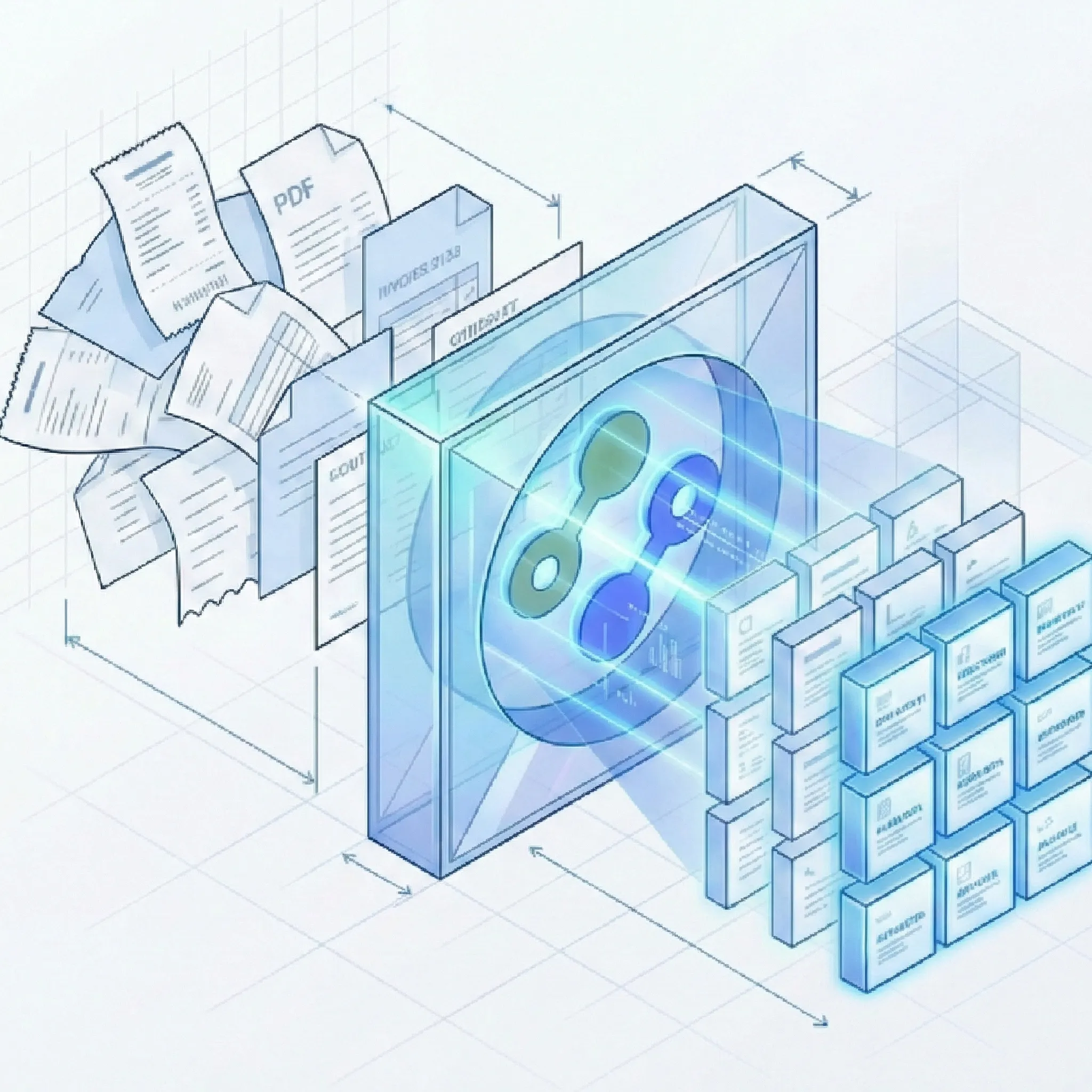
Less copying between your inbox and your next task
Test the route before making it routine
Suppose your Outlook rule forwards new messages from a selected supplier to an attachment-only Suparse address. Send a fresh matching message with a representative PDF.
Make Outlook email part of the work that follows
Bring relevant messages into a repeatable process, check the captured details, and share data where your team needs it.
Forward the messages your workflow needs
- Keep your existing email account: Send relevant new mail from Outlook or Microsoft 365 to a dedicated Suparse address for your document type.
- Choose which messages to send: Use forwarding for new mail or a rule for selected messages, such as supplier invoices. See Microsoft's forwarding instructions or guide to forwarding with rules.
- Start with one real message: Send a new matching email and check its arrival in Suparse before relying on the route for recurring work.
Capture and review the right details
- Read the source that matters: Process message text, supported attachments, or both with the Suparse email parser.
- Bring attached paperwork into the process: Capture fields and tables from PDFs and document images with the email attachment parser.
- Check the values your team will use: Review extracted fields and item rows against a representative message or attachment, then refine your saved document fields where needed.
Put the results into your next task
- Keep a shared register current: Add new results to a spreadsheet with useful email context through the email-to-Google-Sheets workflow.
- Share a file: Download saved results as XLSX, CSV, or JSON when a colleague needs data for review, reporting, or a one-time handoff.
- Connect your own application: Use document webhooks with a custom integration to start the business actions your team defines. Explore related Suparse features for the wider workflow.
Questions about parsing Outlook email
How does Suparse receive messages from Outlook?
Outlook forwards new messages to a dedicated Suparse address. You choose which messages to forward and which document type to use for extraction. This works through email forwarding rather than a direct mailbox connection.
Can I bring in messages already in my Outlook mailbox?
Automatic forwarding handles new messages matching your setting or rule. It does not synchronize your mailbox or import its message history. Start by sending a new message to confirm the route and the extracted fields.
Can Suparse process the email body and an attachment together?
You can process the body, supported attachments, or both. Each source is a separate input and may produce its own result; their contents are not automatically merged into one document. If the message only says 'see attached,' processing attachments alone keeps that covering text out of the results.
What if my Microsoft 365 organization blocks forwarding?
Your organization's policy may restrict automatic forwarding outside the company. Ask your Microsoft 365 administrator to check which route is allowed. Microsoft's external forwarding policy guide explains the relevant controls.
How can I check that my Outlook workflow is working?
Send a new message that matches your forwarding rule, then confirm it arrived in Suparse. Review the extracted document fields and table rows against the source so you can check both the email route and the information your team expects to use.
Where do I configure spreadsheet output after forwarding works?
Use Email to Google Sheets to choose email content and preserve message context in rows. Use automatic Sheets export setup for the Google connection, layouts, and delivery gates.
Put your next Outlook message to work
Create your Suparse account and start with an email your team handles regularly. Capture the details you need, review the results, and reduce the manual entry that follows each message.
Sign Up to Capture Outlook Email Data