
Give shared document intake a repeatable team process
Incoming paperwork needs a clear route and someone responsible for the next step. Bring emailed documents and uploads into Suparse, choose shared folders for recurring work, and agree who checks results and handles exceptions. Use saved document types for familiar intake and Autopilot for mixed packets, then hand the captured data to the spreadsheet or application your team uses.
- Process emailed documents and file uploads
- Find and review records as a team
- Move extracted data into the next step
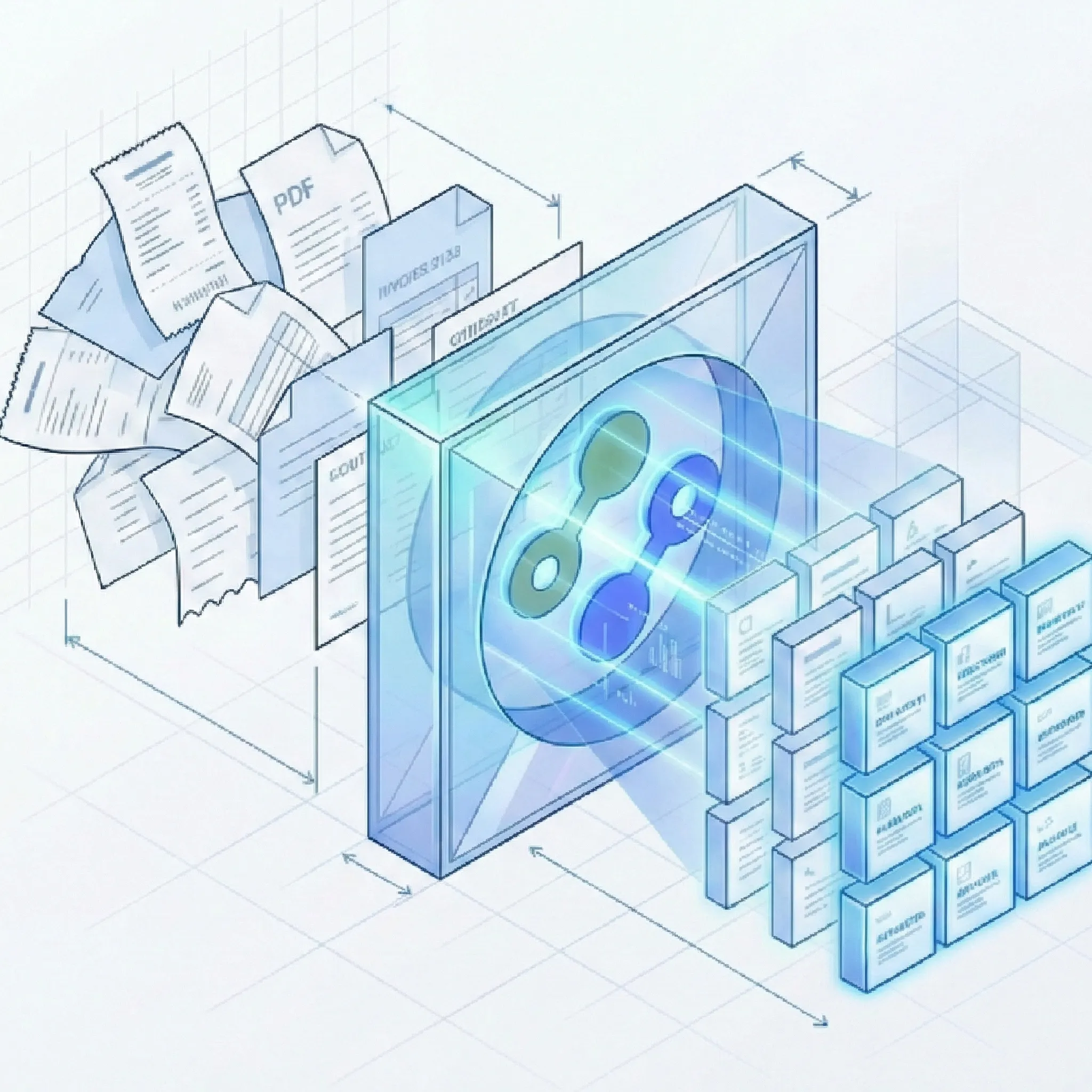
Less sorting and copying. More time for the work that follows.
From incoming documents to the information your team needs
Receive the paperwork, work with each record, and choose how its data moves into your next task.
Bring incoming documents together
- Process email without downloading every file: Send documents to dedicated team email addresses and extract data from message bodies, attachments, or both. Explore the email parser.
- Handle familiar and mixed paperwork: Use your saved invoice fields for recurring supplier documents, or let Autopilot extraction handle files and emails containing different document types.
- Keep intake focused: Accept email from approved senders and place new email results into a chosen team folder, giving colleagues an organized starting point.
Find and review each document
- Work with individual results: A PDF containing invoices, receipts, and statements becomes separate records through document splitting, with relevant fields selected through document classification.
- Find the detail a colleague asks for: Search captured supplier names, invoice references, amounts, and line-item descriptions. Narrow the results by folder or upload batch with document organization and search.
- Check the values before relying on them: Open an invoice result to review its supplier, total, and line items. Correct extracted values and finalize the result when your process calls for a human check.
Put the data into your next step
- Agree where colleagues receive the data: Use automatic Google Sheets delivery for a recurring register. Its setup page covers connection, layouts, and delivery gates.
- Connect your own application: Use document webhooks with a custom integration to pass extracted results into the tools and business rules your team already uses.
- Support recurring client work: Organize incoming paperwork and use the extracted data in the processes your firm runs every month. Explore bookkeeping and accounting automation for that workflow.
Design the intake process around three recurring routes
These are example team responsibilities, not automatic task assignments. Choose a destination folder for each email address and a folder during file upload.
Questions about digital mailroom automation
What is digital mailroom automation?
Digital mailroom automation turns incoming business documents into information your team can use. With Suparse, you can receive documents by email or file upload, extract fields and tables, organize and review the results, and deliver the data to Google Sheets or your own application through a custom integration.
Can we process invoices, purchase orders, and shipping documents in the same workflow?
Yes. Use saved document types for recurring paperwork or Autopilot for mixed intake. Each matching document type defines the fields and tables to capture, so invoices, purchase orders, and shipping documents can each produce relevant results rather than sharing one set of fields.
What happens when one PDF contains several documents?
Use Autopilot for the splitting, classification, and extraction workflow. The mailroom process should also establish who inspects the resulting records and handles exceptions before their data moves on.
Can we control which emails are processed and where results are organized?
Yes. Team administrators can restrict incoming email to approved senders and choose a team folder for results received through an email address. Use a dedicated address for recurring documents or an Autopilot address for mixed paperwork. Unfamiliar emailed documents without a suitable type go to review.
How can colleagues find a document after it has been processed?
Team members can browse shared folders or search text and numbers captured in document fields and tables, including line-item values. They can also filter by upload batch. Search works on extracted data, so the detail used to find a document needs to have been captured.
Do shared folders create separate departmental access permissions?
Folders organize work within the team workspace. They do not make records private from other team members. See document organization and search for folder behavior; agree responsibilities as part of your team process.
Can we check extracted values before they reach our spreadsheet?
Yes. Agree who performs the check, then choose the appropriate gate in automatic Sheets export setup. Validation and reviewer finalization are separate choices.
Can Suparse send results to our internal business application?
Yes. Document webhooks let your team build a custom integration that uses extracted results in your application. Your integration maps the fields and decides what happens next, such as creating a record, routing work, or notifying a colleague.
Give incoming documents a clear next step
Create your Suparse account and start with the paperwork your team receives every day. Turn incoming emails and files into records you can find, review, and put to work.
Sign Up to Automate Your Document Intake